Huguette Gougeon was born about 1655 in Port Royal, Acadia, to Antoine Gougeon and Jeanne Chebrat, almost exactly a century before the Acadians would be permanently rounded up and expelled from Acadia. Huguette didn’t know it, but she was giving birth to the expulsion generation – her children, and theirs.
Huguette’s mother was a widow with at least two children who had married Antoine about 1654, sometime after her former husband, Jean Poirier, had died. There’s substantial confusion surrounding the Poirier connection, though, and we’ll discuss that in Jeanne Chebrat’s article.
Assuming Huguette’s mother was Jean Poirier’s widow before remarrying, when Huguette was born, she had a sister, Marie Francoise Poirier, who was about 7, and a brother, Michel Poirier, who was about 5.
In the 1671 census, Antoine Gougeon, a farmer, was 45, and her mother, Jeanne Chebrat, was 45. They have one child, Huguette, who is 14, which puts her birth at about 1657. They have 20 cattle, 17 sheep, and are living on 10 arpents of land.
I’m guessing that Huguette had several siblings born between her birth and about 1669 when her mother would have been about 43. They were probably all buried in the local cemetery beside the Catholic church.
Huguette and her parents lived two doors from Michel Poirier, a bachelor, age 20, son of the deceased Jehan Poirier. Michel had 2 cattle, but no other livestock and no cultivated land. I wonder if this meant that Michel was living where his father lived, although you’d think if that was the case, he would have had some land under cultivation too.
There’s another question as well. Twenty is VERY young for an Acadian male, let alone a single male, to be living outside of a family unit – the youngest I’ve ever seen by a substantial margin. This is a real head-scratcher with his purported mother living nearly beside him.

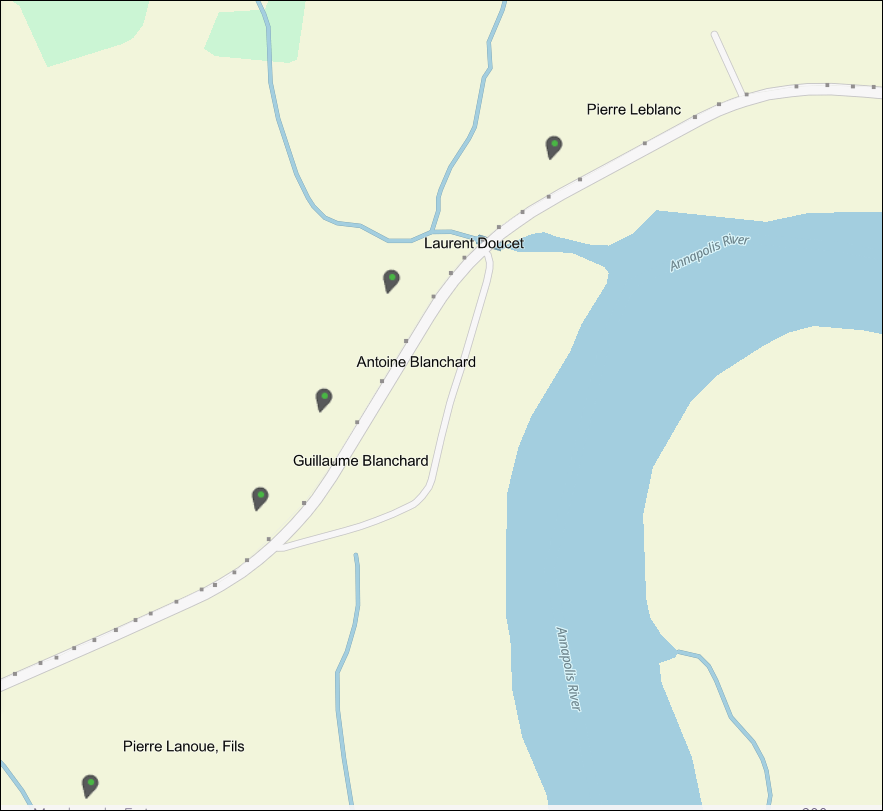
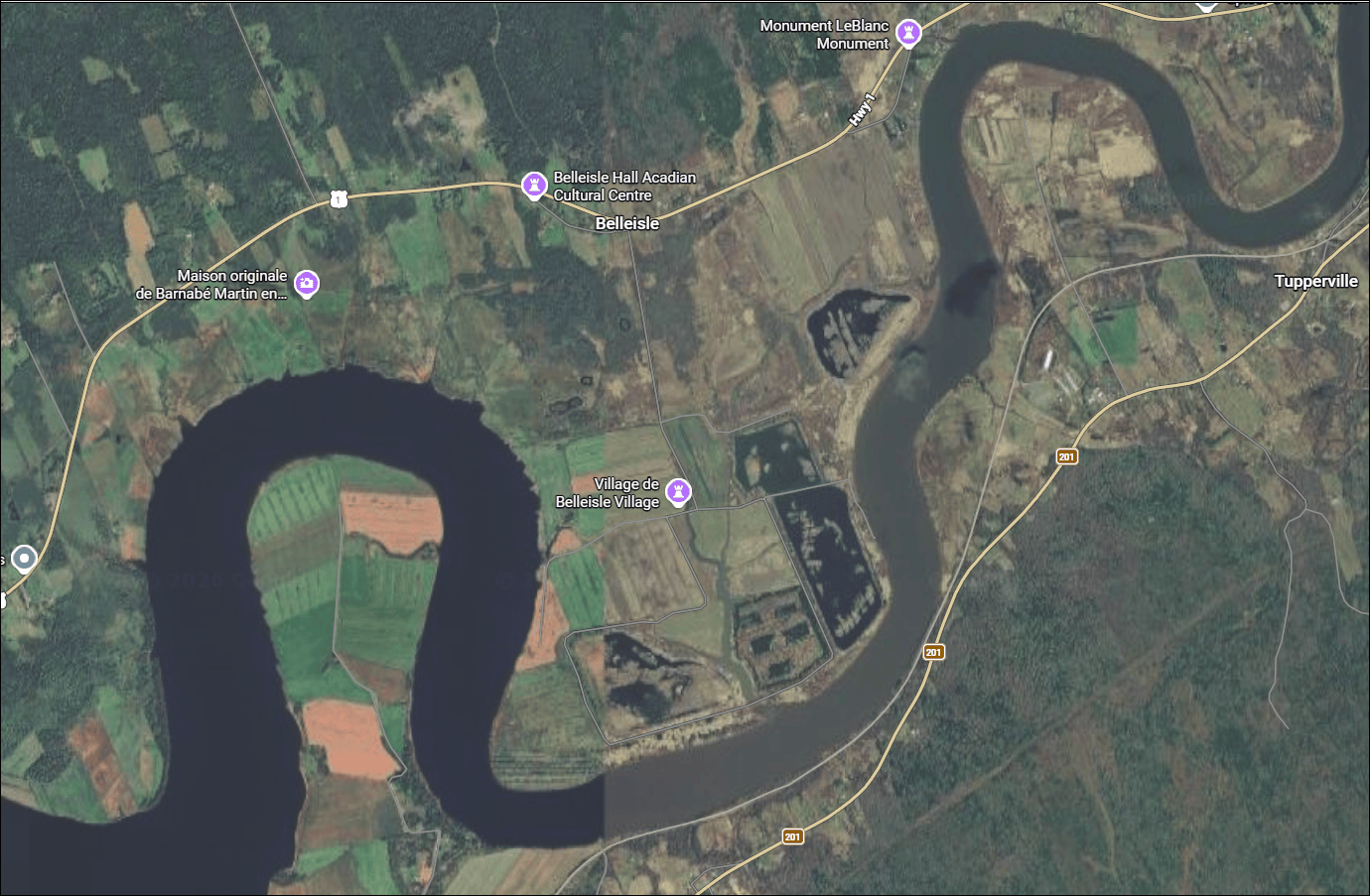
Based on the neighbors, as shown at MapAnnapolis, they are living upriver at Belle Isle and probably had been for some 15 or 20 years. Many Acadians moved upriver after the devastating English attack in 1654, which means Huguette had never lived anyplace else. In fact, she never would.

The next census was taken seven years later, in 1678, and Huguette had married Guillaume Blanchard. They already had three children, two boys and a girl, suggesting they married at least five years earlier, which would have been around 1673. Huguette would have been about 16 at the time, a typical age for an Acadian bride.

The couple is living with Guillaume Blanchard’s parents upriver at Belle Isle. Huguette’s father has died, and Huguette’s mother, the widow Gougeon, lives nearby.
The 1686 Census
Eight years later, in the 1686 census, Guillaume Blanchard is shown as 35, and Huguette Goujonne (sic) is 27, which puts her birth about 1659.
For the first time, we discover the names of Huguette’s children.
- Marie is 12, so born about 1674 – this is the daughter in the 1678 census
- A son born before the 1678 census, so probably in 1676, has died before 1686
- Son Rene is 8, so born about 1678 – he would be the son in the 1678 census
- Antoine is 6.5, so born in 1679 or 1680
- Jeanne is 5, so born about 1681
- Huguette may have lost a child born about 1683
- Anne is 2, so born about 1684
They are farming 5 arpents of land.
1690 – An Extremely Rough Year
The Acadians who lived upriver at Belle Isle were somewhat protected from whatever was going on at Port Royal – at least physically and in the short term.

A bend in the river at Port Royal, combined with extreme tidal fluctuations – as much as 25 feet – prevented large warships from traveling upriver beyond Port Royal.
Belle Isle, another 9 miles or so upriver, was protected from immediate incursions and attacks by the English. They weren’t, however, immune to the results.
Huguette wasn’t unfamiliar with the English. They had taken the fort in 1654, the year before she was born, and control of Acadia wasn’t returned to the French until 1670, after the Treaty of Breda, when she would have been about 15.
While the English controlled Acadia during this time period, they were not part of the Acadian community. Amazingly little intermarriage occurred, in part because the Acadians were staunchly Catholic, and the English were equally as staunchly Protestant.
So, while Huguette would have been familiar with English soldiers and administrators, living upriver, she would only have seen them occasionally, and from a distance. They were probably a curiosity.
From 1670 until 1690, life in Acadia, under French control, was relatively peaceful. I say relatively, because Acadia was never truly peaceful.
By 1690, tensions between the English and French had escalated again, and in April of 1690, English warships, with 42 cannons and more than 700 men, descended upon Port Royal.
The entire 1686 Port Royal census counted only 592 people in 95 families, meaning roughly 100 men and a few older boys. The Acadian families only had 75 guns between them.

The English fleet entered the basin several miles downriver, but the sentry and grapevine system would have delivered word quickly so that the upriver families could prepare in whatever way they did.
The fort at Port Royal was in a sad condition, decrepit and crumbling, and it was impossible to defend either the fort or the town. Port Royal was the capital of Acadia, so if Port Royal fell, so did Acadia.
The fort had no defensively mounted cannons, and only about 70 of the 90 soldiers stationed there were present. Worse yet, they only had 19 guns in the entire fort. Unprepared is an understatement.
Even with all of the French and Acadian forces combined, the situation was still hopeless, at least militarily. The fact that 42 Acadian men were absent, and when French Governor Meneval sounded a cannon as an alarm, only two men showed up to help, made an already impossible situation hopeless. 72 men with 19 or 20 guns against more than 700 men with guns and cannons.
The English demanded surrender, and the French had little choice. Thankfully, the English didn’t fire on the fort and small town of Port Royal, or it would have been a massacre.

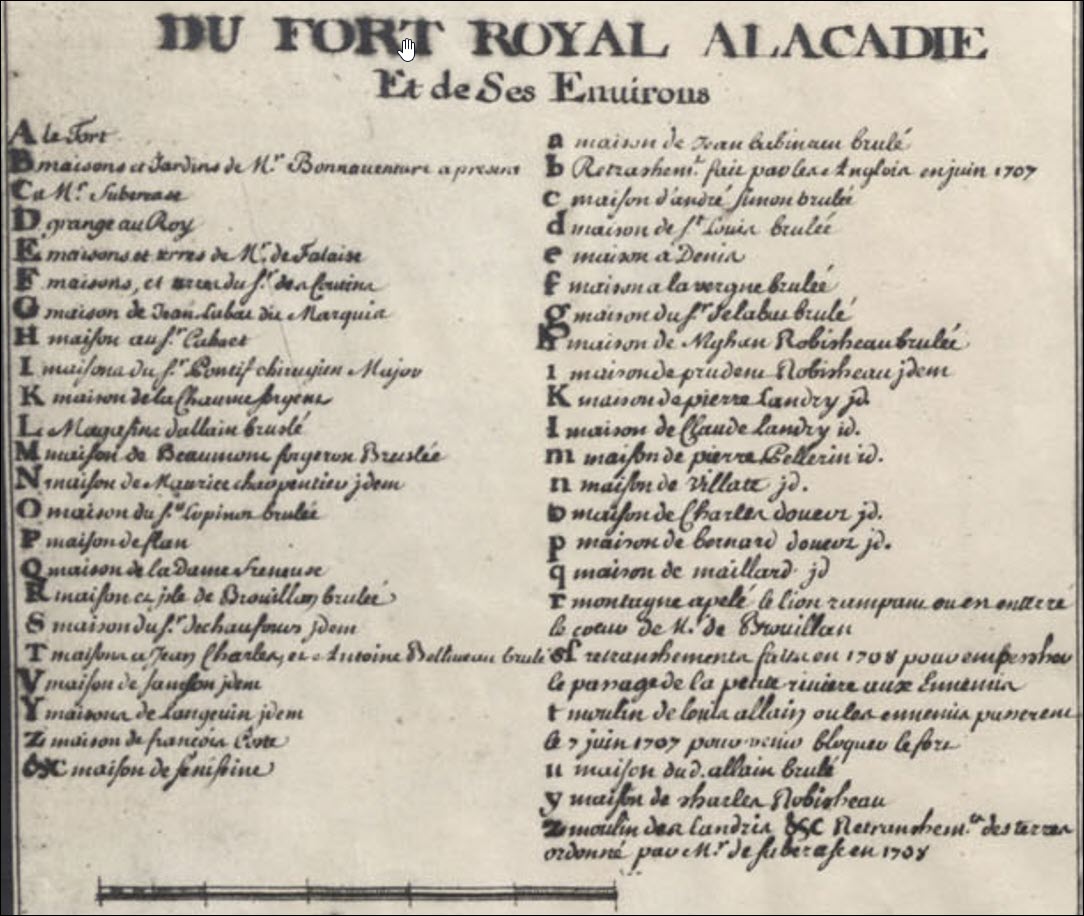
The 1686 map shows us how small Port Royal actually was. Port Royal was the administrative, military and financial center of Acadia, but the farmers who lived up and down the river and farmed the salt marshes were the workhorses, the backbone of the economy, producing the food and agriculture that sustained the Acadians, Port Royal, and the fort.
The Acadian governor negotiated surrender terms that provided:
- For the Acadians to keep their possessions, undamaged.
- That the Acadians could continue to practice their Catholic religion.
- For the French soldiers and administrators to be unharmed and transported back to France.
All things considered, this was the best the French governor could possibly expect, under the circumstances.
However, after it was agreed upon, the English refused to sign the agreement, and as soon as the French surrendered, the English fleet commander unleashed those hundreds of men upon Port Royal.
They rampaged, stole, plundered, and burned the town.
They did not venture upriver, where their lack of warships and cannon for cover would have made that endeavor MUCH riskier.
Huguette would have been about 34, had 9 or 10 children ranging from infant to 17, and may well have been pregnant. An Acadian mother’s fertile years consisted of either being pregnant or nursing.
While there was no warfare close enough to hear, the upriver Acadians would certainly have been filled in by messengers.
As Huguette stood near the river, outside her home or in the fields perhaps, she would have seen the smoke begin to rise over the river in the distance. First wisps, then rolling plumes reaching to the Heavens, obstructing the sun. There was no question. Port Royal was burning.
What did Huguette do?
There’s no record of action the upriver Acadians took to shield themselves, but given what we know about the landscape, their Native allies, and their knowledge of the terrain, my expectation would be that the women took the children and retreated into the woods in the mountains. They could have taken some supplies with them, but they weren’t exactly expecting or prepared for warfare.

These mountains behind the Blanchard’s stream at present-day Marshland Road represented safety and survival.
It would have been better to be safe and hungry than dead – and Huguette and the other upriver Acadians had no idea how far the marauding soldiers would venture.
The English were now in charge. They rounded up the Acadian men, held them in the church at Port Royal, and forced them to sign an oath of fidelity to the English crown.
Then, the English soldiers and warships left. Yes, Acadia was now in English hands, and the upriver farms hadn’t been burned.
Yet.
A few months later, English pirates returned and finished the job. They killed the Acadian families’ livestock and took anything they could find. There’s no record of them venturing upriver either, but we don’t actually know. They could have killed their livestock, but not burned the farms, although that’s unlikely.
We do know that the Acadian way of life was disrupted.
Their church in Port Royal was burned. Many families were going without. Livestock was limited, and much of the harvest was ruined. They were headed into a very lean fall and winter.
1697 – Acadia Officially Returned to France
While Acadia was officially in English hands, functionally, not much changed. England wasn’t prepared to suddenly have possession of Acadia and had made no plans to govern it.
Following Sir William Phips’s 1690 capture and plundering of Port Royal, Massachusetts briefly claimed jurisdiction over the territory. However, because Phips left no garrisoned troops behind to enforce English rule, French authorities, led by Governor Joseph Robinau de Villebon, actually re-established operational control on the ground as early as 1691. International and legal sovereignty was formally restored to the French Crown when the Treaty of Ryswick was signed on September 20, 1697.
Regardless of who officially, or unofficially, controlled Acadia during this time, the Acadians had lost the spiritual anchor in their community – their church.
The Church
The Catholic church and associated rituals were the spiritual foundation of Acadian life, and the church was the hub. Both in France and after families began arriving in Acadia more than half a century earlier, the Acadians had battled and fought the English for their Catholic existence, both figuratively and literally.
When we think of the church in Acadia, and more specifically in Port Royal, we think about the physical Church of Saint John the Baptist that stood near the fort in Port Royal itself.

This 1686 map clearly shows the church in front of a fenced cemetery with little crosses marking graves. This is where the Acadian people worshipped and laid their family members to rest before the 1690 fire.

No church stands there today, but the location of the original church is marked between the fort’s garrison and the Garrison Cemetery, on one of the ramparts.

Evolution of the Church in Port Royal
The history of the church in Port Royal is an important part of understanding the lives of Acadians. While the church was a physical building, it was also a living thing. Understanding the evolution of “the church” in Port Royal is essential to understand Huguette’s life at Belle Isle, and the lives of all Acadians up and down the river valley.
Unfortunately, many records don’t survive, and there are no registers before 1702, so we have to gather information from other sources.
The first known surviving church record from Port Royal is the baptism of Marie de Menou, daughter of Governor Charles de Menou d’Aulnay and Jeanne Motin, on September 21, 1639. Witnesses were Claude Petitpas and Mr. Boudrot, the first syndics of Port Royal, along with Pierre Cachet, son of Pierre Cachet, and Jeanne Trahan, age 10, the daughter of Guillaume Trahan, who served as the baby’s godmother. This clearly occurred in Port Royal given that d’Aulnay had just recently moved the seat of Acadia from La Hève to Port Royal.
Syndics were appointed by the heads of households within the community to address parish concerns and represent interests to the seigneur and state.
That doesn’t necessarily mean that the church building itself had been built. Priests held services wherever they were, made notes, and recorded baptisms, marriages, and burials in the parish register later, when they could.
Capuchin friars were brought in 1641 by d’Aulnay and were active in Port Royal during the 1640s. They instructed both Acadian and Native American children and established a monastery at Port Royal. In 1649, a monk consecrated a new church there and was the same priest who officiated a few years later at the 1653 marriage of Jeanne Motin and Charles de la Tour.
Based on this information, we can infer that residents who lived in or near Port Royal between 1649 and 1654 worshipped in a church building, and people prior to that worshipped someplace in Port Royal, perhaps at the monastery.
In 1654, Port Royal fell to the English, and both the church and monastery were burned. La Société historique acadienne tells us that the English banned worship at the fort, so the Acadians built the chapel in the woods at Belle Isle to avoid detection. Many would have attended church and maintained their customs and rituals, as much as possible without a priest, during this time.
A decade later, in 1664, a Franciscan friar was reportedly sent to Acadia, but other records suggest that Port Royal lacked a priest until after France regained control of Acadia in 1670.
Given that the English controlled Port Royal, including the fort, where the Catholic church had been located, they would never have allowed a replacement church to be built there.
During that time, “church” was not being held in a church building in Port Royal.
Brenda Dunn in her book, A History of Port Royal, tells us that:
“In June 1673, men from the St. Jean Baptiste parish in the Port-Royal area met at the request of their church trustee, Abraham Dugas, to organize funding for construction of a parish church. Mass was being held in a borrowed room. The Acadians had maintained their faith throughout the long period of English rule.”
While they may have had a priest in Port Royal, there is no evidence of a church until 1673 or later.
In a letter dated October 2, 1685, Father Trouvé described Port Royal as a community of “at least 600 souls,” noting that despite being spread over five leagues along the river, residents attended church in large numbers on Sundays and holidays. Five leagues is 12 or 14 miles, which reached far upriver. He was clearly including most if not all of the settlements near Port Royal, although if one measured from the most distant settlements in each direction, it would probably be further than that.
In 1686, Bishop Jean-Baptiste de La Croix of Quebec visited Port Royal and participated in sacraments for the Feast of Saint Anne on July 26 and praised the congregation’s sincere piety.
In 1690, the English took Port Royal and burned the church again.

The Saint-Jean-Baptiste Catholic church would never be rebuilt here.
In 1693, a new priest was assigned. We know there was no church because in 1701, the priest was recorded as being upset because the stones of the ruined church were being used for the new fort being built to defend Port Royal.
In 1699, a visitor noted that the makeshift church resembled a barn more than a church.
In 1701, a nun lamented that the impromptu church had a straw-covered roof, log walls, and paper windows. There was no bell, and the people were called to mass with the beating of a drum. She was clearly not happy about this state of affairs.
Earlier parish records were lost, and the incomplete register we have begins in 1702.
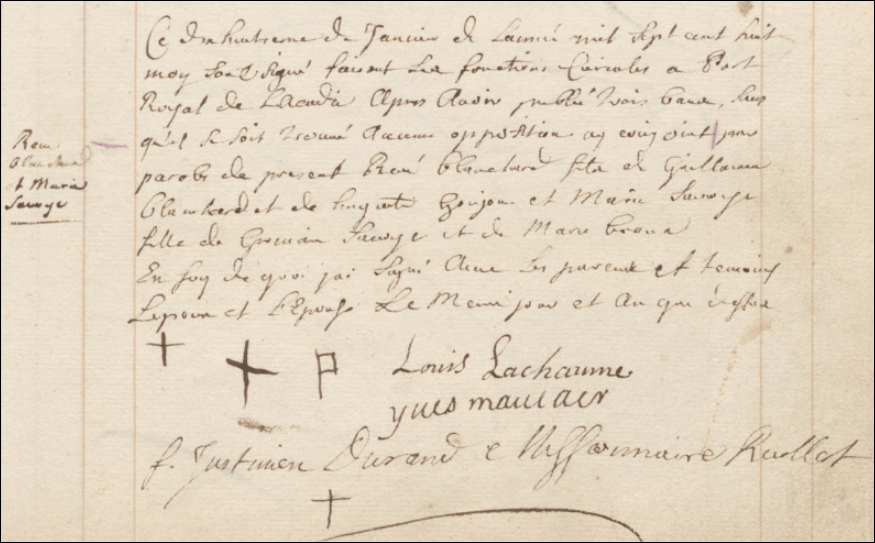
In 1704, Father Justinien Durand became the parish priest. He lived at the monastery, adjacent to the former church that also functioned as a rectory.

The location of the original church was incorporated into the fort.
The congregation had no means to build another church and gathered in “a dwelling house” until they pooled their funds and obtained a building sold by Claude-Sébastien De Villieu in 1704 or 1705 for 4,000 écus and turned it into a church. This site is located at 208 St. George St. today, further from the fort, although the present building is not the original.
Conflict
It’s at this point in history that the Blanchard family encounters the brutal intersection of religion, politics, land, money, and expansionism. While the mother church in Port Royal struggled and the congregants purchased Villieu’s building to transform it into a much-needed church building, Huguette Gougeon’s husband, Guillaume Blanchard, was engaged in a personal war with Villieu over the frontier land he had developed at Petitcodiac.
Blanchard won a battle, but Villieu won the war, and Blanchard lost his entire investment and that of his family members as well.
While Blanchard won the right to remain on the land he had dyked there, Villieu retained seigneurial rights, meaning Blanchard would have been forced to pay retroactive rents and taxes to his bitter rival, wiping out his investment and making life in Villieu’s shadow unbearable.
If Huguette and Guillaume had been attending the church at Port Royal for any reason by that point, their attendance would have ceased abruptly. They were not going to worship in a building funded by the very man who broke them financially. I doubt they ever set foot in that particular church again.
They had probably been attending church upriver at Belle Isle for 20 years by that time. Their local chapel was labeled as the Mass House on maps but was named St. Laurent. Maybe they attended the central church at Port Royal on holidays, Christmas and Easter, at least when there was a church there.
That particular church building didn’t last long.
Another Fire
The church and monastery at Port Royal were destroyed again during one of two attacks on Port Royal by the English in 1707.
The French government had provided compensation to rebuild the monastery, but a two-year dispute arose over whether to rebuild the monastery or the church. The dispute ended with the capture of the town by the British in 1710, so neither was ever rebuilt.
The Acadians tried to recover by adding a chapel to the fort in 1709, but when Fort Port-Royal was surrendered to the English in 1710, the fort chapel was turned into a barracks for British troops.

The layout is shown on the sign above at present-day Fort Anne, with red building #9 being the 1709 church-turned-barracks.
By 1713, in order to keep the peace, parishioners local to Port Royal were allowed to participate in mass at the nearby Mohawk Fort, as the British permitted a parish priest to reside there.
But Acadians were far from compliant.
Resistance at Belle Isle
In January of 1711, Father Justinien Durand was captured by the English, held hostage and taken to Boston until he returned in a hostage exchange in December of that year.
After his return, he was operating clandestinely out of the St. Laurent Church in Belle Isle, serving his parishioners there and up and down the river as best he could.
A new church was reportedly built on the other side of the river in Granville Ferry at an undetermined location that served the local population who were too distant from Belle Isle. Another church, La Croix du Cap, is found on a map at Lequille. Yet another, Sainte-Anne at Pointe-aux-Chênes, met near today’s Stoney Beach near the Melanson settlement. Services were probably held in other homes as well.
It’s no wonder that the parish records are so fragmented and incomplete.
All Catholic churches and chapels in Acadia were destroyed when expulsions occurred, beginning in 1755.
However, the St. Laurent church, first referred to as a “Mass House,” where Huguette and her family had probably been attending since the 1650s, was located at Belle Isle and became the spiritual heart of that community.
St. Laurent Church

Note that the “Mass House” church or chapel, St. Laurent, is very close to the LeBlanc Village and their neighbors, the Blanchard family. Transporting a body all the way back to Port Royal by canoe for burial, especially in the winter, seems both unnecessary and risky, if it were even possible.
We know that Acadians settled at Belle Isle between 1651 and 1654 when the English burned the church at Port Royal. They would have needed someplace much closer to worship, so they would have built their local chapel, a satellite of the official mother church at Port Royal.
There are at least 20 burial records that specify St. Laurent in the Registers of Saint-Jean-Baptiste, 1702-1755. This list is not at all complete since most burial records did not specify any burial location, and the parish records prior to 1702 no longer exist.
We know that in 1711, after the English took Port Royal for the last time, Father Durand was holding mass at St. Laurent upriver at Belle Isle, and burials took place there too.
While births and deaths were unplanned events and had to be dealt with in a timely manner, marriages had the benefit of being planned. Bound by religious dictates of the Catholic Church, publishing marriage banns was required. These canonical laws mandated that before a couple could be legally and sacramentally wed, their intention to marry had to be publicly proclaimed by the priest on three consecutive Sundays or major Feast Days during public Mass.
The purpose was to allow community members to come forward if they knew of any roadblocks, such as an existing marriage elsewhere, a lack of parental consent for minors, or if a dispensation for consanguinity was required.
Sometimes the banns requirement was waived in the case of visiting priests, remote locations, or other mitigating circumstances.
When the Acadians could no longer hold services in Port Royal, the St. Laurent church at Belle Isle would have fit the bill. Although it began as a chapel of convenience, it eventually became more.
Given what we know about the church at Port Royal, Huguette could have been baptized in Port Royal if she was born before the church burned in 1654, or at Belle Isle, which is more likely, given that she was probably born in 1655.
Her family lived less than a mile from St. Laurent, and many miles from Port Royal. Even when the family had a choice, the most reasonable and expeditious choice would have been the chapel at St. Laurent.
Huguette and Guillaume were probably married at St. Laurent around 1672 or 1673, given that the church at Port Royal was not rebuilt until sometime after mid-1673. As each child arrived, they were probably baptized at St. Laurent too.
By 1692, when Huguette’s eldest daughter, Marie Blanchard, married Charles Bourgeois, the only church available would have been at Belle Isle because the church in Port Royal by the fort was burned for the final time in 1690.
Saint-Jean-Baptiste Church History
The history of the Saint-Jean-Baptiste church in Port Royal, while long and complex, is essential for understanding the lives of Acadian families, especially the upriver families.
The name of the “church” never changed, and all baptisms, marriages and burials were recorded in the Saint-Jean-Baptiste parish register. The building was burned at least three times in two locations, and “church,” write large, was held in many places. Satellite churches, such as St. Laurent, were built, but they were still chapels of convenience for people too distant from Port Royal.
Of course, during times of strife, and particularly when the English were in charge, St. Laurent became the face of Saint-Jean-Baptiste.
This table summarizes what we know about “the church” and the associated chapel at St. Laurent. Bolded years are when a church building of some sort existed at Port Royal.
| Year |
Event |
Port Royal Church |
Other Church |
Comment |
| 1639 |
d’Aulnay child’s Baptism |
At Port Royal |
|
Probably no church building |
| 1641 |
d’Aulnay brings Capuchin friars |
Established a monastery |
|
Taught children |
| 1649 |
Consecration by priest |
New church at Port Royal |
|
|
| 1651-1654 |
Acadians moving upriver to Belle Isle |
|
Maybe Mass House built |
Probably began worshipping at Belle Isle |
| 1654 |
English attack |
Church and monastery burned |
Mass House (St. Laurent) built when English banned worship at Port Royal |
Assuredly worshipped at Belle Isle when Port Royal church burned |
| 1654 |
No church at Port Royal |
|
|
Probably buried people at Belle Isle |
| 1664 |
Friar maybe appointed |
|
|
|
| 1670 |
French regain control of Port Royal |
|
|
Services in “borrowed room” |
| 1673 |
Abraham Dugas organized and planned a new church |
At Port Royal – not sure when actually built |
|
|
| 1685 |
Visiting priest’s report |
|
|
Residents attend church in large numbers on Sundays and holidays |
| 1686 |
Bishop Visit from Quebec |
At Port Royal |
|
Praise the residents’ sincere piety |
| 1690 |
English take Port Royal |
Oath signed in church |
|
Church burned |
| 1690 |
English pirates attack Port Royal |
English soldiers or English pirates burn church |
|
|
| 1699 |
Gathered in dwelling house |
|
|
Visitor noted that makeshift church resembled barn more than church |
| 1701 |
Priest report |
Church in rubble |
|
Priest upset because stones used to reinforce fort |
| 1701 |
Catholic nun notes |
Impromptu church |
|
Straw-covered roof, log walls, paper windows, no bell, and people called to Mass with the beating of a drum |
| 1704-1705 |
Villieu’s building purchased by congregation |
Converted into church |
|
Located at 208 St. George St., in Annapolis Royal today |
| 1704 |
Father Justinien Durand appointed parish priest |
Lived in monastery beside former church |
|
|
| 1705 |
Father Durand note about burial of heart of Jacques-François de Montbeton de Brouillan |
|
la Croix du Cap |
“…his heart was brought back to Port-Royal and interred “near the Cross of the Cape (auprès de la Croix du Cap), where a chapel is to be built.” |
| 1707 |
English attack again, twice |
Burned converted church and monastery |
Record in parish register mentions St. Laurent location |
|
| 1709 |
Chapel at fort |
Chapel added at fort |
|
|
| 1710 |
Port Royal falls to the English |
Fort chapel becomes English soldiers’ barracks |
|
|
| 1711 |
English arrest Father Durand |
|
At St. Laurent |
|
| 1713 |
Father Durand burial entry |
|
St. Laurent and La Croix du Cap |
“…buried in a place called the Cross of the Cape, which has served as a cemetery since the country has been subject to the English, because we were unable to transport him to the cemetery at the upper part of the River…” |
The Catholic church, as well as the neighborhood chapels played an outsize role in the lives of the Acadians. Perhaps it was their irrepressible faith that helped them survive.
The 1693 Census
In the 1693 census, Huguette Gougeon is listed with Guillaume, age 42, and their children, except her name is now spelled Agate Goujon and she’s 37, which places her birth about 1656. Perhaps Agate sounded something like Huguette.
Huguette’s children begin with her married daughter, husband and their baby, who are living in the same household with Huguette and Guillaume:
- Marie, 19 and married to Charles Bourgeois, 20, along with their one-year-old daughter, Jeanne.
- Rene, 16, so born about 1677
- Antoine, 14, born about 1679
- Jeanne, 11, born about 1682
- Anne, 9, born about 1684
- Missing child, born about 1686
- Jean, 6, born about 1687
- Elisabeth, 4, born about 1689
- Guillaume, 3, born about 1690
- Magdeleine, 1, born about 1692
In 1693, Guillaume and Huguette were doing well with 30 cattle, 40 sheep, 15 hogs, and 3 guns. They now farm 30 arpents of land, which is more than most Acadians. They only had five arpents seven years earlier in 1686.
They may have inherited Huguette’s parents’ 10 arpents of land and may be farming the six arpents of land owned by Guillaume’s parents.
Four families have more than 30 arpents of land, and nine others have exactly 30 arpents, a rather common amount to have been granted upriver.
Daughter, Marie Blanchard and Charles Bourgeois
In the 1693 census, Huguette’s married daughter, Marie, 17, and her husband, Charles Bourgeois, 22, are also shown in Beaubassin, where their baby, Marie, is recorded as 4 months old. Clearly, the couple has relocated between the baby’s birth and when the census was taken in both locations. The discrepancies in names and ages illustrate the differences between census takers and their varied levels of accuracy. I bet the little girl’s name was Marie Jeanne.
Marie Blanchard would go on to have 10 known children. Their destinies are inextricably tied to the horrific 1755 Expulsion.
- One died before 1752, probably in Tintamarre.
- One in South Carolina.
- Three in Quebec.
- One, along with his family, perished on the ship Duke William that sank in the North Atlantic on December 13, 1758, while forcibly transporting exiled Acadians to France.
- One probably in Saint-Domingue (now Haiti), where his son is later found marrying.
- One in St-Jean-du-Perrot, France.
- One in Saint-Pierre et Miquelon Islands off of Newfoundland after being a refugee in Baie-Verte, then deported to Georgia.
- One in La Rochelle, France, after first being sent to Georgia, South Carolina, Boston, then Saint-Pierre et Miquelon, where their homes were again destroyed before they went to France in 1778.
My heart aches for Marie’s terribly fractured family, torn so ruthlessly from each other.
Marie herself died sometime after 1733, when two sons married and she was alive, and before 1748, when Marie’s daughter married and both of her parents are noted as deceased. I’m glad Marie didn’t live to see what would happen just a few short years later.
While Huguette would have missed Marie when they settled in Beaubassin, she clearly had her hands full with her own large family, including a new baby. Still, it’s sad that Huguette didn’t have the opportunity to know her first grandchild for more than just a few weeks.
Grandchildren can be one of life’s greatest joys.
The 1698 Census
In the 1698 census, Huguette is listed as age 43, which puts her birth about 1655. Her children are now:
- Rene, 21
- Antoine, 19
- Jeanne, 14
- Anne, 14
- Jean, 11
- Elisabeth, 9
- Guillaume, 8
- Madeleine, 6
- Pierre, 3
- Charles ½
Huguette and Guillaume have expanded their property under cultivation to 34 arpents of land. They have 26 cattle, 24 sheep, 12 hogs, and 3 guns.

Additionally, they have 12 fruit trees, which would be apples.

Their near neighbor, Pierre Martin, is said to have planted the first apple trees at Port Royal, and apple trees still grow in abundance at Belle Isle today.
Marie, Huguette’s married daughter living in Beaubassin, is now 18 and has three children. Jeanne, 5, Charles, 3, and Marie, 2.
The Next Frontier – Petitcodiac
We don’t know how much Huguette was involved with Guillaume’s investment at Petitcodiac, and the resulting legal battle. Between 1698 and 1699, Guillaume set out for the next frontier and established the Village des Blanchard, hoping to build his own seigneury where he could grant land and benefit from the rents paid by fellow Acadians who would work the land. That’s exactly how French property ownership worked, and Guillaume had spent his life at Belle Isle as one of the farmers.
Now, he dreamed of more and set out to turn those dreams into reality.

In 1698, Guillaume and fellow Acadian Pierre Thibodeau set out on an exploratory journey, scouting for a suitable location with marshes similar to those at Belle Isle.
Correspondence from that time makes it clear that Guillaume requested a massive tract of land, half a league on either side of the river for an unstated distance. His request was sent to France for processing, but another man, Claude-Sébastien de Villieu, who lived at Port Royal, claimed that the land Blanchard requested belonged to his father-in-law, Michel Leneuf de La Vallière, as part of his already-established seigneury at Beaubassin.
In 1699, Guillaume, two of their sons, René and Antoine, and one son-in-law began clearing the land and dyking the fields to keep out the salty river water to prepare them for agriculture and settlement. That process took three years until enough salt had leached out for the fields to be productive.
Huguette would have been about 44 or 45 at that time, with nine children at home ranging from about two to 22.
She would not have accompanied Guillaume on either the scouting trips or the trips to dyke the river and prepare the land for habitation. Someone had to stay home to care for the family and tend to the crops and livestock at Belle Isle. That’s exactly what Huguette did – without the help of her two eldest sons, who accompanied Guillaume on their grand adventure.
Did Guillaume plan to move his family to Petitcodiac when the fields were ready, sometime around 1702, or was the plan to manage his seigneury from a distance, with his wife and children remaining on the land at Belle Isle? An October 1702 paragraph in a letter by Mathieu de Goutin reporting about the founding of Les Mines may provide the best insight into that question.
“The said Blanchard has a sailing vessel, and grown sons, sons-in-law, and nephews, who will put the Petitcoudiac land along the Petitcoudiac River to use and will settle there many people, and in three years the colony will draw support from them.”
Guillaume’s Petitcodiac colony was meant to be an investment.
Those two sons and one of Huguette’s daughters and son-in-law, although we don’t know for sure which one, spent the winter there in 1701, so they had every intention of establishing permanent homes at Petitcodiac.
By 1702, 5 families with 13 people lived at Petitcodiac. We know that Huguette was not among them, because there weren’t enough people listed to include Huguette’s children. It’s probably a good thing she hadn’t uprooted and moved, because trouble was on the horizon.
On March 20, 1703, a royal decree was issued from the Conseil d’État in Paris that tried to balance the interests of both parties in the land request. It stated that the Acadian settlers could retain possession of the land and improvements, granting a “censitaire du seigneur,” essentially making them tenant farmers with the right to pass the tenancy of the land to their descendants. But it also established that La Vallière was to have seigneurial rights over the land.
This ruined Guillaume’s plans, but he apparently appealed, with the same verdict being repeated in 1705.
However, the events that occurred in 1704, with Benjamin Church attacking and burning Village des Blanchards at Petitcodiac and ruining the fields, probably resolved that still outstanding question in a different manner.
The Blanchard family returned to Belle Isle, and the 1705 decision simply put the final nail in that coffin.
I’ve always wondered how Huguette felt about this entire episode.
For six or seven years, from 1698, when the planning and scouting began, through the development stages, into the full-time residency, and beyond the fire, she had been Guillaume’s partner. We don’t know if she was excited and an encouraging partner, or if she was simply relieved when it was finally over, and her now-adult children came back home and settled at Belle Isle.
The 1700 Census
In the 1700 census at Port Royal, Huguette Gougeon, aged 45, lived with her husband, Guillaume Blanchard, aged 49, and their children. This census was compiled before Huguette’s daughter, Jeanne, married in August.
- René, aged 23
- Antoine, aged 21
- Jean, aged 13
- Guillaume, aged 10
- Jeanne, aged 18
- Anne, aged 16
- Élisabeth, aged 11
- Madeleine, aged 8
Pierre and Charles, who would have been five and two and a half, respectively, are missing in the census, but they had not died because we find records of them as adults.
Daughter Marie had already married.
The family owned 3 guns and lived on 30 arpents of cultivable land with 26 cattle and 39 sheep.
Jeanne Blanchard and Olivier Daigre
Daughter Jeanne Blanchard married Olivier Daigre on August 8, 1700. Given that Olivier lived even farther upriver, and the church in Port Royal was meeting in a “borrowed room” in Port Royal at that point in time, they almost certainly married at St. Laurent.
They could have been the daughter and son-in-law who overwintered at Petitcodiac in the winter of 1701.
Jeanne’s children were born beginning in 1701, so Huguette would have been able to watch them grow up. She had six children with Olivier Daigle, although the youngest was born five months after his untimely death on September 22, 1709.
- One died in Beaubassin.
- Three died in Cornwall in 1756 after the Expulsion.
- One died in Liverpool.
- One probably died in Connecticut.
All of Jeanne’s children with Olivier Daigle settled in Beaubassin or Grand-Pré.

In 1755, the Grand-Pré men were gathered in the church where the Expulsion decree was read to them. Their property was stripped away and forfeited to the English crown, and they were to be removed. The men were held captive while the women gathered their children and a few things.

They were herded at gunpoint with whatever meager belongings they could carry onto ships for deportation to random, scattered locations. Many Acadians never knew what happened to their families. Many didn’t survive.
The cruelty was astounding. How could humans intentionally treat other humans that way just because of who they were?
Anne Blanchard and Claude Bourgeois
Anne Blanchard married Claude Bourgeois around 1701. Her sister, Marie, had married Claude’s brother, and the couples initially settled side by side at Beaubassin.
It would have been difficult for Huguette to say goodbye, knowing she would probably never see another daughter again, and she would miss out on knowing her grandchildren. At least both daughters were together.
Anne had 10 children between 1704 and 1732, and eight survived to be exiled by the English.
- Two died in Beaubassin.
- One in the refugee camp at Miramichi.
- One in Quebec after being deported to Connecticut.
- Two in Mole-St-Nicola, Haiti, after being deported to Georgia, South Carolina, then New York.
- One may have died at Miquelon or, after 1767, in Cocagne and Richibouctou-Village, NB, after making their way back.
- One at Miquelon or near present-day Hillsborough, NB, after making their way back.
- One possibly at Halifax, where they were held after being deported to South Carolina, then returning to Camp Miramichi before being held at Halifax.
- One in Louisiana after leaving Halifax.
We know that Anne Blanchard, who was about 71 in 1755, lived to see the horrific Expulsion. She and Claude are listed in the last census at Baie-Verte in 1755 after their homes were burned in Beaubassin in 1750 and the forts in Chignecto fell. After that, the families were loaded onto ships for deportation to random colonies. Some escaped into the woods, assisted by the Mi’kmaq, where the escapees faced dense forest and grueling treks. Some mounted guerrilla offensives. Their fate is unknown.
1701 Census
In the 1701 census at Port Royal, Huguette Gougeon, age 46, is living with her husband, Guillaume Blanchard, age 51, and their children.
- René (surname mistakenly recorded as Richard), 24
- Antoine, 22
- Jean, 14
- Guillaume, 12
- Isabel (Élisabeth in other records), 12
- Madeleine, 9
- Pierre, 6
Charles is missing but is not deceased. He would have been 4.
The family owned 5 guns and lived on 20 arpents of cultivable land with 25 cattle, 25 sheep, and 17 hogs.
The Parish Register

Fortunately, beginning in 1702, the Saint-Jean-Baptiste parish register is extant, and we can begin to track births, marriages, and deaths, although the register is not complete.
I can’t help but reflect on how fortunate we are to have this register and the effort it must have taken from the priests serving the region to preserve it. They must have kept it at their residence or squirreled away someplace safe, because it didn’t burn in the 1707 or other fires.

The opening page shows both a French and Latin paragraph.
“Registers of Baptisms, marriages, and Burials of the parish of St. Jean Baptiste of Port-Royal, beginning the year of our Lord one thousand seven hundred two in the month of September.”
This tells us when this register was begun. Unfortunately, earlier registers do not exist. So, what happened to the earlier registers? We have a clue.
Father Abel Maudoux, a secular priest working under the Bishop of Québec, had shepherded the Port-Royal church through an extremely turbulent decade beginning around 1693.
In 1702, the Bishop recalled Father Maudoux and officially transferred the territorial assignment and spiritual authority over the parish to the Franciscan Récollet order.
Following this institutional shift, Father Félix Pain, a Récollet missionary, was assigned to take over the parish duties.
While both men were Catholic, they belonged to completely different administrative branches of the Church. Father Maudoux was a secular diocesan priest who answered directly to the Bishop, whereas Father Pain belonged to a monastic order with its own internal rules, funding, and communal archives.
Because secular priests during this era typically treated their day-books and sacramental records as personal operational property rather than a permanent localized archive, Father Maudoux probably took his loose papers and registers back to Québec with him when he departed.
Arriving to a blake slate, Father Pain, thankfully, created the parish register that exists today and is preserved at the Université Sainte-Anne.
“Father [Felix] Pain, priest, inscribed and gave this book: pray for him; may he who wrote this be inscribed in the book of life, aided by your prayers.”
This Latin paragraph on the first page, written in his own hand, asks us to pray for Father Pain who kept this register. Indeed, I’m eternally grateful.
1703 Census
In the 1703 census at Port Royal, Huguette Gougeon, who would have been about 48, lived with her husband, Guillaume, and their 6 boys and 2 girls. The family included 5 arms bearers. Unfortunately, in this census, neither Huguette nor the children are listed by name, and individual ages are not recorded.
All of the 1703 children map to the 1701 children, including Charles, who is counted in 1703 but was missed in 1701. The five arms-bearers would be Guillaume and the 4 oldest boys. René would have been 26, Antoine, 24, Jean, 16, and Guillaume, 14.
Son Jean is accounted for in this census, but is not found in 1707, so he died between the ages of 16 and 20. I can’t help but wonder if he died in 1704 in Petitcodiac.
Was Huguette able to wash and dress her son’s body, and bury him in the nearby St. Laurent cemetery, or was he simply lost to her?
Benjamin Church Destroys Village des Blanchard
By 1704, Queen Anne’s War was two years old, and Acadian settlements became English targets.
We can surmise from other records that Huguette’s two oldest sons would have been living at Petitcodiac, and possibly one of her daughters with her young family as well. Based on the 1703 information, there were two additional families living there too, but we don’t know who they were because those villages were not enumerated separately.
In July, Colonel Benjamin Church sailed into the river basin at Port Royal under the cover of darkness and sailed up to Port Royal. The English planted themselves in front of the fort with their massive fleet of warships and transport vessels fully on display.
Tiny Port Royal would never be able to defend itself against more than 1000 soldiers and sailors. The upriver Acadians were safe for the moment, but of course they had no idea what would happen.
Church captured an Acadian family near Goat Island and forced the wife to act as emissary, hand-delivering a request for surrender. The fort commander refused, and a 17-day standoff ensued.
Once again, Huguette would have set about preparing her family for certain defeat and possible destruction.

Would they have headed into the woods?
Of course, Huguette had no idea that it was actually her family members living at Petitcodiac who were in danger.
While the fort at Port Royal and the Acadians there were pinned down by the looming warships, preventing anyone from leaving, the rest of the English fleet made its way to the other Acadian settlements, including Petitcodiac. They switched to smaller boats to navigate the bore tides and make their way up the river.
Proud of his accomplishments, in his 1716 memoirs, Benjamin Church tells us in his own voice what happened at Petitcodiac, and to the neighbors slightly downstream at Chipoudy. They were clearly taken by surprise.
Church recorded that as they approached Chipoudy, a few Frenchmen and an Indian guide were spotted on the shoreline and his soldiers immediately pursued them into the woods.
He recalled that the settlers had built their homes and outbuildings with distinct frontier craftsmanship. Following his orders to “leave no habitation standing,” his men systematically went from house-to-house, torching them all.
Church then specifically boasted about burning the newly constructed homes and barns at Chipoudy and that the inhabitants fled into the woods or marshes rather than barricading themselves in their homes.
He then recounted moving on upriver where the Blanchard Petitcodiac settlement would have been. He killed their cattle and sheep, destroyed their homes, and tore down the dykes, allowing the salt tides to wash back over the land.
Church bragged that it gave him great satisfaction to break the “substance” of “the French” inhabitants, systematically destroying everything, hoping to also neutralize the assets of their allied “Indian Rebels.”
It was Huguette’s children and grandchildren who were living there – who ran into the woods, thankfully, and escaped.
Huguette would have had no way to know any of that at the time.
At the end of Church’s reign of terror, or maybe raining terror in the northern settlements, he returned to Port Royal.
Much to the surprise of the Acadians and French at Port Royal, Church did not attack – not because of any altruistic reason, but because Port Royal was the capital, and he thought better of actually attacking the capital without permission from England. He had no qualms, though, about destroying the smaller settlements as retribution for the French attack at Deerfield, Massachusetts.
Church had a minor skirmish at Port Royal, killing one and injuring another, then left, much to everyone’s amazement.
We don’t know how the Port Royal Acadians discovered what had happened at Petitcodiac and elsewhere. It’s not unlikely that the rumor mill was already turning, and that either the beginning of a stream of refugees from those settlements, or their Mi’kmaq allies, made their way to Port Royal.
We’ll never know for sure, but given that Guillaume Blanchard owned a boat, and his family members were at Petitcodiac, I’d wager that he immediately set out to check on things – a trip that turned into a rescue mission.
There was nothing left at Petitcodiac. Both sons and any other family members who might have been living there returned to Port Royal.
Huguette must have been terrified when she heard the news, then incredibly relieved. I can only imagine the tearful reunion when she saw her children climb out of a boat onto shore once again.
Maybe all except one. Maybe Jean never came home.
The Final Decree
In 1705, the final decree from Paris arrived, confirming what the 1703 decree had declared about property ownership at Petitcodiac. Any dream of renewing and rebuilding Village des Blanchard was dead.
This was probably a last hurrah for Guillaume, as they were aging. Huguette had reached the half-century mark, and Guillaume was about five years older.
If Guillaume was disappointed, Huguette’s two sons, Antoine and René, must have been devastated. Petitcodiac represented the future and opportunity. Now, instead of being the sons of a seigneur, positioned to become seigneurs themselves one day, they had to readjust to life at Belle Isle as farmers.
But they were young men, with full lives ahead of them.
Antoine’s eyes must have brightened when he saw Elisabeth Theriot. Maybe he developed a sudden interest in helping her father on the farm. Two and a half years later, they married and started a family.
Antoine Blanchard and Elisabeth Theriot
Antoine Blanchard married Elisabeth Theriot on January 31, 1707. I’m sure they would have married at St. Laurent at Belle Isle, because by this time, the congregation was meeting in the building purchased from Villieu – the man who, combined with Benjamin Church, had caused his family’s dreams to be crushed.
Antoine died on October 5, 1750, in Port Royal. They had 10 children between 1708 and 1728.
- Three of those children did not live to adulthood, so they would probably have been buried at St. Laurent, near where Antoine and Elisabeth lived.
- One of his children died in Port Royal, Martinique, after having been exiled to New York during the 1755 Expulsion.
- Another died someplace in Martinique.
- One died in Quebec.
- One probably died as a prisoner in Halifax after being held at Camp d’Esperance and Fort Edward.
- One probably died near Port Royal after 1763 when he returned from Quebec.
- One died in Martinique after being sent to New York.
- One died in Louisiana after arriving via Santo Domingo, after probably being held at Fort Beauséjour.
Huguette would have known five of Antoine’s children. One child who did not survive to adulthood was born in 1710, so Huguette might have been present for her funeral as well.
The 1707 Census
In 1707, at Port Royal, Huguette Gougeon, aged 52, lived with her husband, Guillaume Blanchard, aged 57. They had two boys aged 14 or older, two younger boys, and two girls aged 12 or older. The family owned 6 guns and lived on 25 arpents of cultivable land with 32 cattle, 38 sheep, and 14 hogs.
The children living at home would have been:
- René, age 30
- Elisabeth, age 18
- Guillaume, age 17
- Madeleine, age 15
- Pierre, age 12
- Charles, age 10
Jean Blanchard, who was listed in the 1701 census and accounted for in 1703, had died by 1707 when he would have been about 20.
Port Royal Burns, Twice
Aside from the bright spot of Antoine’s wedding, 1707 was a terrible year.
The Acadians lived with intense, unrelenting stress. The situation with the English was constantly on the threshold of becoming a flashpoint, and cumulative raids and threats of raids took their toll.
Everyone was on edge, and with good reason. Captured English told of massive preparations to attack Acadia – and the Acadians weren’t about to forget what the English COULD have done to Port Royal in 1704, and didn’t. They probably had no idea why they had been spared.
On June 6, 1707, Colonel John March sailed up the river, heavily armed and with about 1600 total soldiers and sailors. Governor Subercase sounded the alarm. With all of the available Acadian men, plus the 100 French soldiers at the fort and about that many Abenaki warriors who were visiting, they were massively outnumbered.
This was it, and everyone knew it. The best they could hope for was the most generous surrender terms possible, and mercy.
Fortunately, the English were extremely incompetent and inexperienced with siege warfare. Despite their numbers, the English committed multiple rookie errors and actually failed to take the fort. However, in their humiliation, before climbing aboard their ships and sailing away, they burned the town.
And because once wasn’t enough, they did the exact same thing two months later, in August – with the exact same results.
Unfortunately, they burned nearly every building and farm in and near Port Royal.
Once again, the upriver Acadians, mostly women and children because the men would have been fighting the English, watched as the plume of smoke rose from Port Royal. Not once, but twice.
The first line of defense at the farms was retreating into the woods and mountains with the children for safety. That said, I’d wager that if you cornered an Acadian woman, woe be unto you. The Acadian bravery and perseverance is legendary yet today.
British Governor Samuel Vetch’s correspondence described the upriver Acadians as “intractable.” His soldiers would arrive at farms only to find the houses completely empty, their assets hidden in the forest, and local guerrilla fighters waiting in the tree line to ambush them.
I’m Angry with France
Point of personal privilege here.
Yes, I know this happened more than 300 years ago, and yes, I know it was far away – but I’ve written so many Acadian ancestors’ stories that I sit here right with them as they suffer.
And you know what – that particular suffering was entirely unnecessary.
France established this colony and then neglected them repeatedly from the beginning. No regular supply ships. No regular reinforcements. No maintenance, and often, no pay for the soldiers.
How in the devil did they expect a few hundred men, at MOST, to defend the colony? The majority weren’t soldiers and didn’t even have guns, yet they faced HUNDREDS of English men WITH guns backed by a flotilla of warships with cannons.
The fort at Port Royal was constantly falling apart, then fell apart. It was so bad that most of the time NONE of their cannons were mounted, and could not be.
The Acadian Governor was forever trying to make do and finally partnered with French pirates just to feed his soldiers.
Yes, even though my Acadian roots spring from France, I’m still VERY angry with historical France in the 1600s and 1700s for abandoning their colony to whatever fate the English subjected them to.
And that fate was repeatedly awful, horrible, torturous, and eventually, in 1755, genocidal.
Acadia was slipping away from France by the early 1700s, and they were too daft or shortsighted to do anything about it.
By then, most Acadians no longer considered themselves “French.” They had never seen France and had formed a unique society, fully Acadian, with their own spirit and culture. Not to mention that France had betrayed them repeatedly, abandoned them, and left them to suffer. Over and over.
Rant over. I guess a little bit of my Acadian slipped out there for a minute.
Let’s return to 1708 and attend René Blanchard’s wedding, which was unquestionably held at Belle Isle, because the “church” at Port Royal, such as it was, had been burned in 1707, never to be rebuilt.
René Blanchard and Marie Savoie
On January 18, 1708, René Blanchard, about 31, Huguette’s oldest son who lived to adulthood, married Marie Savoie, whose parents lived in the heart of the Belle Isle community.
René died in 1754 in Port Royal at 78 years of age, but his family was exiled to Massachusetts. His impoverished widow, Marie, recorded at age 77, is listed in Duxbury, Massachusetts, in 1757, where she was living with her daughter, Marguerite, age 34. They are noted as “very poor and unable to work to support themselves.” I’ve always wondered if Marguerite was disabled in some way. Marie is also shown in 1763 with one female child, and is presumed to have died in Massachusetts.
René and Marie had 13 children, five of whom were born before Huguette’s death.
- Son Jean was deported to South Carolina but made it back to Camp d’Esperance, where he boarded a ship bound for Quebec City. Unfortunately, a smallpox epidemic was raging there, and his wife and 4 children died within weeks of his arrival. Jean died in September of 1759, possibly in the decisive Battle of Quebec on the Plains of Abraham that led to the end of French rule in Canada. The English took the lives of so many Acadians.
- One of René’s children died in Repentigny, Quebec.
- One disappeared about the time of the 1755 Expulsion after being found in Memramcook near Village des Blanchard in 1755.
- One probably died being held prisoner at Fort Beauséjour.
- No record of René’s namesake son beyond his 1716 baptism appears, and we know an epidemic devastated the Port Royal region about this time. He died before 1724, when a second son by that name was born.
- One died in Martinique after being sent to New York, where they were listed on Long Island in 1763.
- One died in Quebec after being exiled to Georgia, then probably sought refuge on Isle St. Jean before making their way to Quebec.
- Marguerite is never found in any records again after her mother’s death in Massachusetts, so she probably died there too.
- René’s son by the same name, born in 1724, left Miramichi aboard a ship bound for Quebec City, but smallpox claimed their family after arriving. He died along with his wife and two children within weeks of each other, leaving behind two young orphans.
- One was shipped to Massachusetts, where they asked in 1763 for passage to France before dying in Quebec 23 years later.
- Twins died at 2 and 7 days of age in July of 1728 at Port Royal. They would have been buried at St. Laurent at Belle Isle.
- The youngest daughter married just months before the 1755 Expulsion, apparently losing her first couple of children during that horrific ordeal, before dying in 1767 in Yamachiche, Quebec.
Élisabeth Blanchard and Claude Girouard
On February 5, 1709, Élisabeth Blanchard married Claude Girouard, who lived across the river. He would have rowed over in his canoe to court Élisabeth, and they would have seen each other at the St. Laurent church. Rivers were the highways in Acadia.
Élisabeth’s story is a bit unusual, because she only had four children whose baptisms were recorded, but neither she nor Claude died during her child-bearing years. Her children were born in 1710, 1714, 1717, and 1720, but none after that. Typically, if a woman has children at all, they continue to have children for the duration of their fertile years, which would have been until about 1732, or so.
Looking at the baptismal records for the four children whose records we do have, a pattern becomes clear. All four of those children were baptized by a neighbor or someone other than a priest, although the baptism was eventually recorded in the parish register.
Therein lies our clue. Élisabeth and Claude must have lived remotely, distant from a church, and her babies needed to be baptized immediately. Élisabeth probably gave birth to at least eight other babies, and that’s presuming that each of those children lived long enough to be weaned before she became pregnant with the next child. If that wasn’t the case, then she could have had even more children that perished.
So much grief.
Since all of her children born after 1720 appeared to have died, I can’t help but wonder about a hidden genetic issue, like Rh incompatibility.
Élisabeth didn’t die until sometime after 1760, when she is listed in Gloucester, Massachusetts, at age 72, living with Joseph Doucet, her first cousin’s wife’s brother.
- One daughter died in Port Royal in 1735, not quite two months after she had married.
- Another is never found in records again after his 1720 baptism.
- One child died in Saint-Domingue (now Haïti) sometime after 1763.
- The only child who positively outlived Elisabeth died in Saint-Ours, Richelieu, Quebec, of smallpox in 1776 after having been exiled to Marblehead, Massachusetts, during the Expulsion.
Elisabeth’s three oldest children were born in Huguette’s lifetime, the last one in July before Huguette passed in October 1717.
Olivier Daigre Dies
Life is tenuous and unpredictable. On September 22, 1709, Huguette’s son-in-law, Olivier Daigre, her daughter Jeanne’s husband, suddenly died. It was so unexpected that he received all three last rites “one after the other” from a visiting priest, not Father Durand. Whatever happened to Olivier, it was very quick and unexpected.
Huguette’s daughter, who lived across the river and upriver a few miles, was left with five children between 18 months and eight years old, plus she was four months pregnant with her sixth child. Jeanne’s son would be born to his widowed mother on the five-month anniversary of Olivier’s death.
Additionally, when Olivier died, they were in the midst of harvest season. He might have been involved in some kind of accident. Regardless, they still had to bring in the rest of the harvest, thresh the grain, preserve the garden food, and hold the fall slaughter.
Jeanne desperately needed help, and Huguette would obviously have stepped up.
A year and two days after Olivier’s death, and when Jeanne’s baby was just seven months old, the English returned to Port Royal. This time, they wouldn’t fail in their mission.
The 1710 Fall of Port Royal
Huguette wouldn’t have worried less as she aged and her children married; she would have worried more, because she had more people to love as sons-in-law and grandchildren were added to the family. Plus, her daughter, Jeanne, was now a widow with six children to provide for.
No one was surprised when the English sailed back into the river basin in late September of 1710, this time loaded for bear with 35 ships and more than 3,400 men.
And like always, the French soldiers at the fort were hungry, neglected, and ill-equipped. The Acadian men came to their aid, of course, along with maybe 20 men from Quebec and as many Mi’kmaq who had the misfortune to be visiting.
Together, they were outnumbered more than 10 to 1. This wasn’t going to end well.
There was no reason for the ships to fire on the fort. The English didn’t actually want to destroy anything, because they wanted as many spoils as possible.
They wanted to capture Acadia and get rid of those pesky French.
And so, they did. The fort fell, but there was no burning and looting. The English simply took control.

This time, everyone acted like gentlemen. The Acadians and French soldiers were allowed to march out with their dignity, flags flying and drums beating.

The French commander gave the English commander the key, quipped that he might pay him a visit in the spring, and the English marched in.
Acadia would never again be in French hands.
The English required an oath of allegiance to the English crown. The Acadians refused, and for the next two decades, the English and Acadians engaged in an economic and political tug-of-war for control.
Initially, the English told the Acadians living within a 3-mile radius that they had to sign the oath, and then gave them two years to move to a “French territory,” meaning outside Acadia.
What happened if they refused to sign the oath? The implication was that they didn’t get two years to move.
What about those Acadians who lived beyond the 3-mile radius, at Belle Isle and upriver? Who knew?
Did they have to leave before that?
Did they have to leave at all?
Everything was in an utter state of confusion.
The Acadians were absolutely determined NOT to leave, at least initially.
To make things worse, the harvest failed that fall. Late spring frosts combined with unusually heavy rainfall and a shortened growing season caused crops to rot in the fields.
And to make things even worse yet, an epidemic of some sort drove the privateers, the very people Acadians had come to rely on for supplies, away. Acadians died, food was in short supply, and Huguette must have wondered if they would survive.
It was small consolation that the English soldiers in the fort at Port Royal were literally starving.
Huguette was 55 years old by now, and she had to be chronically exhausted. And while the actual physical “battle” for political control of Port Royal and Acadia was over – the battle for local control was not. There’s more than one way to fight.
1711 – A Year of Rebellion
Desperate, in January of 1711, Samuel Vetch, the English commander at Port Royal, sent Peter Capon to negotiate a purchase of grain from Pierre LeBlanc, the Acadian militia leader. While the two men were talking in LeBlanc’s house, a group of armed Acadians burst in “with their firelocks cocked,” seized Capon, and dragged him out into the night. Not wanting the entire English garrison to descend upon Belle Isle, LeBlanc quickly went after them and arranged for Capon’s release, paying a ransom of 20 pistoles.
Furious, Vetch sent an officer and fifty armed men to St. Laurent chapel, a half mile upriver from the LeBlanc Village, the following Sunday morning to arrest Father Durand, whom he considered seditious. Huguette and the other Acadians would have been attending services. Vetch also arrested leading inhabitants at the church, including Pierre LeBlanc. So much for his good deed.
They were imprisoned in the “Black Hole,” a torture chamber in the fort. Some were released, and some died.
Could the Acadians hate the English any more?
While the fort was clearly under English control, the upriver Acadians clearly were not. There was no food at the fort.
Food in Acadia came from the farms, most of which were upriver at Belle Isle – and remember, the harvest had failed.
Over the winter of 1710-1711, Vetch had to go to Boston and beg for food for his soldiers. He claimed the Acadians were hostile and uncooperative. Indeed, they were.
When he left, he took the priest, Father Durand, with him as a hostage.
When Vetch returned to Port Royal, his 450 soldiers had shrunk to about 200 through death and desertion, and those 200 didn’t want to be there either.
The upriver Acadians might have been hungry, but at least they knew how to fish and hunt in the environment they had called home for about seven decades.
Full of himself, in June, Vetch decided to send about 70 English soldiers upriver to strongarm the Acadians into providing lumber to repair the fort, and food. This was meant to be a show of force.
He clearly did not know the Acadians yet.
The situation at Port Royal was even more complex than that, because the Native people did not want the Acadians assisting the English, and the Catholic church threatened excommunication if they did. So the Acadians were being threatened by all sides simultaneously, and were caught square in the middle of a no-win situation.
The Acadians would have watched the English on their whaleboat and two flatboats, rowing upriver that summer day, and the human grapevine probably traveled faster than the boat, especially if they had the bad judgment to row against the current.

The Blanchard family lived near the Mass House and beside the LeBlanc Village, shown here on a 1753 rendition of a 1733 hand-drawn map that includes Bloody Creek.
The very out-of-place English would have rowed past all of the homes and villages, including Huguette’s. Their red coats would have been strikingly evident and attracted the attention of literally everyone. Perhaps that was the intention, but what happened next clearly was not.

The English soldiers rowed another six miles or so up the curving river, beyond the houses at Belle Isle, into an even more remote area, near the creek that would soon be named Bloody Creek.

Bloody Creek is narrow just a quarter mile or so upstream, but opens into a plain.

The Creek curves as it snakes its way through the forest, then fields and marsh.

The foliage and vegetation along the creek could easily obscure people from those unfamiliar with the terrain.
The official story says that, in an incredible coincidence, between 50 and 150 Wabanaki warriors, depending on which side’s report you believe, under the leadership of Bernard-Anselme d’Abbadie de Saint-Castin, just happened to be hunting together on that very day, in that very place. Isn’t that just amazing!

Bloody Creek empties into the river at a steep bend, and it was there that the “Abenaki” attacked, killing 16 soldiers, injuring 9, and capturing the rest. Frankly, I’m amazed that they didn’t kill them all.
Father Antoine Gaulin said that the British had planned to attack both the Mi’kmaq and Acadian families and burn the settlements on the upper river, a hotbed of resistance.
Huguette, her four children still at home, and, of course, her children who lived nearby were all witnesses to this event. They would all have seen the soldiers pass by, perhaps with a sense of foreboding. Her widowed daughter, Jeanne, lived perilously close to Bloody Creek. Close enough that she probably heard the battle.
Once again, the official story was that no Acadians were involved, but they were assuredly involved in what came next.
Encouraged, the Acadians and even more Native allies banded together to attempt to retake the fort. Numbering 600 altogether, they were determined and nearly succeeded, but lacked siege equipment and artillery large enough to breach the fort’s walls. It must have felt like breaking into your own house after it had been stolen from you.
Vetch was worried enough that he went begging for reinforcements.
While Vetch was gone, Father Gaulin personally sailed to Newfoundland to obtain the needed artillery and siege equipment, but had the bad fortune to run smack dab into the English fleet on his way back.
Vetch wasn’t about to let this end peacefully. He sent his soldiers to plunder the upriver Acadians, burn their farms and crops, and kill their livestock. He wanted to starve the Acadians and kill the resistance, along with their ability to feed their Mi’kmaq and Abenaki allies.
This time, Huguette’s home would have burned, and assuredly the church at Belle Isle as well. Catholic churches, breeding grounds of rebellion, were symbols the English despised.
As always, the Acadians rebuilt because they were unflinchingly firm in their resolve that they were NOT leaving.
Madeleine Blanchard and Charles Gautrot
Eleven months later, on May 18, 1712, Madeleine Blanchard married Charles Gautrot, probably at a new church at Belle Isle, or at a home where the Acadians were worshiping.
Madeleine and Charles settled at River Gaspareaux at Les Mines by 1715, and later at Grand-Pré. They had eight children.
- Four children did not survive to adulthood.
- Four children died in France after the expulsion.
Madeleine, her husband, and all four of her adult children, with their families, were rounded up during the Expulsion and deported to France in 1758, where Madeleine was on the list of passengers who arrived in Boulogne the day after Christmas. I’d wager she fell to her knees and kissed the earth. She died less than a year later at age 67 and was buried on October 30, 1759, at Boulogne-sur-Mer.
Two of Madeleine’s children were born before Huguette died, but given that they were living at Les Mines and Grand-Pré, she would not have known those grandchildren.
It must have been very difficult to say goodbye to your children when they moved to the next frontier for what you knew in your heart was forever.
Guillaume Blanchard and Jeanne Dupuis
Guillaume Blanchard married Jeanne Dupuis on January 16, 1714. His death is recorded in the Port Royal parish on February 20, 1752. They had nine children.
- Guillaume’s firstborn child died in October 1717 in Port Royal, just four days before Huguette, in the same epidemic.
- One child probably died in South Carolina.
- One possibly while held at Camp d’Esperance.
- Six children died in Quebec:
- One in 1760 after being held at Camp d’Esperance
- One at Sorel.
- One at Saint-Ours.
- Three within a month during the November/December 1757 smallpox epidemic. Guillaume’s youngest daughter, Madeleine, at 21, had never married and she succumbed, along with her two siblings, Anne Helene and Francoise, and their family members. Francoise’s only child died 24 days before she did. Anne Helene’s daughter died on the same day she did, and her husband died 10 days earlier.
Those who died in Quebec in 1757 likely died within days or weeks after arrival. Smallpox was ravaging Quebec City, and the Acadians had already suffered months of malnourishment and other deprivations following the Expulsion. How incredibly sad to survive nearly two years of extreme hardship in exile and, after finally reaching what should have been safety, to succumb to a virulent disease.
Two of Guillaume’s children were born during Huguette’s lifetime. Their firstborn child, also named Guillaume, died just four days before Huguette in 1717. She probably helped care for him in his sickness.
The 1714 Census
In 1714, Guillaume Blanchard is recorded with his wife and 2 sons. Guillaume would have been about 64, and Huguette, 59.
The boys were Pierre, 19, and Charles, 17.
They were living beside their son Guillaume, who had recently married and had no children yet, and their son Rene, who had 3 sons. They were just a few doors from Antoine, who had 1 son and two daughters.
Not the Blanchard Village they had dreamed of, but a Blanchard Village nonetheless.
The Next Oath Demand
Since the 1713 Treaty of Utrecht, things had been relatively peaceful in Acadia. However, that was coming to a halt. The treaty unraveled when King George I came to the throne, and the English at Port Royal had become increasingly concerned about another uprising, or that the Acadians would decide to leave en masse to Île Royale, which was still under French control. In just a few short years, the English had gone from insisting that the Acadians MUST leave, and the sooner the better, to forbidding them from leaving.
Meanwhile, the Acadians had gone from refusing to leave to wanting to leave. They were fed up with the incessant demands. Done.
Once again, they were at a stalemate.
On January 22, 1715, the English demanded an unconditional oath of allegiance to King George. And once again, the Acadians refused, proposing a conditional oath that guaranteed their religious freedom and stated that they would not have to bear arms against either France or the Mi’kmaq.
That made things worse, and the English, whose stubbornness could rival that of the Acadians, decided to impose a trade embargo, of sorts, by closing the fort gates and prohibiting trade with either the fort, meaning the English at Port Royal, or the Mi’kmaq.
This sounds a bit like cutting off your nose to spite your face.
Enter Father Durand, who had been returned in a prisoner exchange in December of 1711. He had spent the intervening time operating out of the church at St. Laurent and ministering to his flock up and down the river.
Father Durand, undaunted, told his parishioners that taking the oath would jeopardize their ability to worship as Catholics. He was a legend, a folk hero, in his own lifetime.
The English soldiers at the fort began to starve because they weren’t getting any food products from the Acadians. That’s what happens when you lock them out.
The English in Boston, however, weren’t nearly so picky, and they were glad to help the Acadians set up a smuggling ring, run blockades, and navigate the black market.
It’s no wonder that there are many omissions in the parish registers during this time.
Fortunately, Jeanne’s second marriage was recorded.
Jeanne Blanchard and Jean Le Prince
Jeanne Blanchard married for the second time to Jean Le Prince on January 30, 1715.
Huguette must have been INCREDIBLY relieved that her daughter didn’t have to face life alone. Jeanne’s father and brother signed as witnesses, so the union, even if Jean was 11 or 12 years younger than Jeanne, which was quite unusual, seems to have been blessed.
They lived across the river, upstream near Bridgetown, which was also close to Olivier’s land. We don’t know exactly when Jeanne died, but we know she was alive in Acadia in 1752, and deceased by 1762 when she is noted as such in her son’s marriage record in Quebec. She may have died during some portion of a 1755 escape over the mountains, instead of boarding those doomed ships at the fort in Port Royal.
Jeanne had five children with Jean LePrince, two of whom were born before Huguette’s death.
- One died either in Connecticut or Quebec in the 1780s.
- Two died in Bécancour after surviving the smallpox epidemic in Quebec City.
- One died in Quebec City during the smallpox epidemic in 1756 along with two of his children and a nephew.
- One died in Quebec City later.
Unlike Jeanne’s Daigre children who settled at Beaubassin and Grand-Pré, her Le Prince children stayed and put down roots near Bridgetown until the Acadians were forcibly removed in 1755.
Unrest and Upheaval
1715, 1716, and into 1717 were filled with unrest and upheaval at Port Royal, and by extension upriver as well.
By 1715, Huguette was 60 years old, and Guillaume was five years older.
Guillaume died during this time of upheaval, with food scarcity, black markets, and clandestine alliances with the English out of Boston.
All this happened while the British soldiers at the fort were starving, and the English were inflicting punishment upon the Acadians – retribution for refusing to provide them with timber and food.
Everything was a huge mess.
One of the omissions in the parish register is the death and burial record of Guillaume Blanchard.
We know he was alive when Jeanne married in January 1715, and he appears to be alive on November 3, 1715, when “Guillaume Blanchard, the son” witnessed a baptism, which implies that Guillaume, the father, was still alive.
By the time Huguette was buried on October 18, 1717, Guillaume was already deceased.
Huguette had become a widow sometime in the two years before her death, which just happens to be when the smuggling efforts, which probably meant plying the river at night, under cover of darkness, were at their height.
Maybe Guillaume just simply died, an older man who had a stroke or a heart attack. Or maybe he succumbed to the epidemic that wreaked havoc upon the population up and down the river. Or, maybe he met with an accident, navigating his boat at night, or maybe he met with an “accident,” and drowned.
We’ll never know. What we do know is that when Guillaume died, Huguette still had two sons at home. Thankfully, they were young men and could certainly handle the farm chores. They were only a few months away from inheriting the rights to farm that land.
Huguette’s Death

Huguette Goujon, widow of Guillaume Blanchard (in the margin).
This eighteenth day of October of the year one thousand seven hundred and seventeen, I, the undersigned performing the pastoral duties at Port Royal in Acadia, solemnly buried with all the ecclesiastical ceremonies Huguette Goujon, widow of Guillaume Blanchard, aged about seventy years, who passed away the preceding day after having received the Holy Viaticum preceded by the Sacrament of Penance, [I] not having been able to give her the Holy Oils because of the shortness of time. In faith of which I have signed the day and year as above.
Friar Justinien Durand, Recollet, Missionary
Huguette was actually about 62, but her life had been difficult, and the priest was quite harried.
This entry tells us that Huguette died rapidly and unexpectedly. In fact, the priest, “because of the shortness of time,” only had time to hear her confession (Penance) and give her final Communion (Viaticum). She passed away before he could complete the third and final step of Last Rites, anointing her with the Holy Oils (Extreme Unction).
The priest may have arrived late in her illness, or because of how sick she was, there may not have been enough time to complete her Last Rites, which consist of three separate rituals.
We know that Huguette was at least partially conscious, because the first two rituals were completed.
- The first rite is the Sacrament of Penance, also known as the last Confession. This might normally take 5 or 10 minutes. The dying person must verbally confess their sins to the priest, express genuine remorse, and receive absolution. If Huguette was drifting in and out of consciousness or struggling to speak, this step could have taken up almost all of the precious minutes Father Durand had left with her.
- The second rite is the Holy Viaticum, the Final Communion where the priest recites a short scripture verse and prayers, then administers a small piece of the consecrated host (the Eucharist) as “food for the journey” to the next life. This should only take a minute or two. Perhaps Huguette couldn’t swallow or was struggling terribly to breathe by this time, because she died, and Father Durand was not able to perform the third rite.
- The third rite, and the one that Huguette missed, is the Extreme Unction, or Anointing with Holy Oils. The priest uncaps his container of holy oil (Oleum Infirmorum) and physically dips his thumb to anoint the dying person’s senses one by one: their eyes, ears, nostrils, lips, and hands. With each touch, he must recite a specific, formal Latin prayer asking God to forgive the sins committed by that specific sense.
As I think about this final act, I also think about the priest touching the very parts of his parishioners’ bodies that would have been highly contagious.
Because Huguette was able to complete her Confession, in the eyes of the Catholic church, her soul was perfectly safe because Confession wipes away all mortal sin. She died reconciled with God, but missed the comfort and grace of the Extreme Unction which was meant to grant spiritual strength to fight off the last-minute terrors of death, when it was believed that the Devil was most likely to launch one last stand. It would also provide physical comfort and erase the lingering “temporal punishment,” lifting the spiritual weight of venial sins, which shortens the soul’s time in Purgatory.
Because Huguette missed this “final erasure” of venial sins, such as a quick temper, minor lie, or selfishness, by anointing the lips (things wrongly said), eyes (things wrongly seen), and so forth, her family would have felt the need to help her through Purgatory. In the following weeks and months, they would have said extra rosaries, offered private prayers, and possibly paid Father Durand to say special Requiem Masses specifically dedicated to Huguette.
It’s obvious that Huguette died very quickly. Had she already been gravely ill, the priest could have heard her Confession four days earlier when her grandson died.
Normally, the body would have been washed and prepared for burial by female friends and family members, and an overnight vigil held. However, these were not normal times. The valley was in the grip of an epidemic. Most people were buried on the same day during this time, or different dates are unspecified. According to the parish register, Huguette was buried the following day.
The final portion of Father Durand’s entry, where he wrote “ay inhumé,” which translates to “I have buried,” tells us that he was in fact at her burial. He would have said her final mass, led the funeral procession outside of the church into the cemetery, blessed her body with holy water, and committed her remains into consecrated land. She was probably buried not far from her husband, Guillaume, and perhaps beside her grandson of the same name who had just died.
Huguette’s family would have marked her grave with a simple wooden cross, perhaps at the same time they marked her grandson’s.
Father Durand wouldn’t have tarried any longer than necessary at any home, although he may well have spent the night if he knew he was delivering mass at a funeral the next day in that same location. He would have eaten meals at the homes he visited, of course, and comforted the families as best he could.
Father Durand was being pulled in every direction at once, and he told us that in his own words.
Epidemic Epicenter
Translating the entries on the same page both before and after Huguette’s entry, and on adjacent pages, it’s evident that some severe sickness was rampaging through the community. Huguette’s grandson, who lived in the household next door, died four days earlier.
Multiple children died and in another case, two adult daughters in one family, ages 20 and 25, died a day apart, and the son of a third daughter just 10 days later. One entry says they died in a “severe fit of sickness” and the priest was not able to get there in time.
A total of 12 people died in just over a month, but the final death may not have been associated with the others.
Several mention the extremely rapid onset of illness and death.
However, there’s a smoking gun that provides insight. In the death record for Anne Roy, who died the day before Huguette, we find:
This sixteenth day of October of the year one thousand seven hundred and seventeen, I, the undersigned performing the pastoral duties at Port Royal in Acadia, solemnly buried with all the ecclesiastical ceremonies Anne Roy, wife of Jean Clémenceau, aged about thirty-five years, who passed away without being able to receive her Sacraments because of the mortality which prevents me from assisting everyone who is in danger, because there are too many of them, and I must tend to the others, and I am alone. In faith of which I have signed the day and year as above.
The translated pages in both directions show a distinct cluster of deaths. One can clearly see when this epidemic both starts and ends, according to the existing entries in the register. Furthermore, these are mostly upriver families, with the exception of Anne Roy, whose mother was Native, and the Le Borgne child whose death I suspect had nothing to do with the epidemic.
The entry prior to the October 13th death was in May of the same year. It was written on the same page, but a gap of five months with no deaths in a community of roughly 900 people is highly suspect.
The priest would not have been carrying a leather-bound book in his boat with him. He would have been making notes and later copying them into the parish register. Obviously, some notes never made it.
Given what the priest’s burial notes reveal, I suspect that this is just the tip of the iceberg.
Known Chronological Breakdown of the Crisis
There are no surviving entries between May 13 and October 13.
- October 13, 1717 – Guillaume Blanchard, age 3, was Huguette’s grandson and the son of Guillaume Blanchard (Jr.) and Jeanne Dupuis. His death marks the earliest recorded victim of the epidemic.
- October 13, 1717 – Cécile Comeau, age 20, was the daughter of Pierre Comeau dit de l’Esturgeon and Jeanne Bourg. Cécile received last rites on the same day that Guillaume died, which meant that the priest had to row several miles between locations.
Father Durand reports that he attended the burial for both Guillaume and Cécile, which makes it impossible that traditional vigils prior to funerals were taking place during this time. There is no record that these deaths and burials occurred on different days.
- October 14, 1717 – Paul Vincent, 6 months old, was born to Clément Vincent and Madeleine Levron in April. They lived on the south side of the river, slightly upriver from Port Royal, near the Comeau family.
- October 14, 1717 – Catherine Comeau, age 25, was the sister of Cécile Comeau, who died the day before. Father Durand recorded that she “died of a severe fit of sickness (morte de fort de maladie) before I was able to administer the Sacraments to her.”
This entry, in combination with her sister’s death the day before, documents the incredible speed of this fatal pathogen. Given that her sister had just died of whatever was going on, had Catherine been ill the day before, Father Durand would have attended to her then, at least to hear her Confession, just in case.
- October 14, 1717 – Anne Petitpas, age 35, was the wife of Jacques Giroüer (Girouard). This is the third death on the same day that Father Durand would somehow have had to minister to.
These three families lived in different communities along the river, but he made it in time for Anne’s last rites. The Vincent family lived downstream from the Comeau family who lived near Moschelle. The Girouard family lived at Tupperville, across the River from the Blanchards and upriver a few miles from the Comeau family.
To put this in perspective, one would only row WITH the tidal river’s flow, not against the tide. It was 3 or 4 miles rowing from Port Royal to Moschelle, maybe 8 or 9 miles from Port Royal to Tupperville, and 11 or 12 to the St. Laurent church area above Belle Isle.
If we are to assume the recording order is the same as the death order, Father Durand had to row to the Vincent home, then from the Vincent home to Moschelle, which would have taken 45 minutes to an hour each, assuming he was in top physical condition and both the weather and tides were cooperating. From Moschelle to Tupperville would be about the same. The total distance from Belle Isle to Port Royal under ideal conditions would be a couple of hours. Rowing against the tide would be impossible, as the opposing current of the river’s tidal flow would neutralize forward momentum. And death didn’t operate on a schedule.
Frantic messengers would have been sent up and down the river to summon Father Durand. The tide changed roughly every six hours, so both messengers and the good priest had to time their travel accordingly.
- October 16, 1717 – Anne Roy, age 35, was the wife of Jean Clémenceau. Her death record is the “smoking gun” where Father Durand laments that the immense mortality (la mortalité) has left him working entirely alone and unable to reach everyone who needs him.
Although Father Durand had attended six bedsides that resulted in death since October 13th, that would not have warranted his verbiage of “because of the mortality [epidemic] which prevents me from assisting everyone who is in danger, because there are too many of them, and I must tend to the others…” Six does not constitute “too many others.” His words suggest that the crisis extended substantially beyond the deaths recorded here. I can hear the pain and agony in his voice 309 years later.
- October 17, 1717 – Huguette Goujon (Gougeon), who Father Durand said was about 70, but was actually closer to 62. Huguette fell ill and died so quickly that Father Durand only had time for Penance and Viaticum, omitting the Holy Oils due to “shortness of time.” She was buried the following day and is the only record in this group that shows a burial on a different day than her death. Perhaps she died later in the day or during the night, and he stayed to bury her the following morning. He was probably exhausted, as was her family. Many more were probably sick and did not die.
- October 24, 1717 – Jean Pitre, age 15, the son of Claude Pitre and the late Marie Comeau. Jean was the grandson of Pierre Comeau dit de l’Esturgeon, the father of both Cécile and Catherine, who died on the 13th and 14th, marking the third child or grandchild that Pierre lost in a matter of 11 days.
- October 28, 1717 – Huguette Vincent, age 50, wife of Jean Bastarche. She is also the aunt of Paul Vincent who died two weeks earlier, on the 14th. Just like Huguette, her fatal illness moved so rapidly that she received the first two rites but missed the final Extreme Unction. Whatever this pathogen was, it was WICKED!
The Bastarche family lived further upstream, just beyond Bridgetown today, but they interacted with the other Belle Isle families. Huguette Gougeon’s daughter, Jeanne, was the Bastarches’ neighbor.
- November 5, 1717 – Pierre LeBlanc, age 53, son of Acadian founders Daniel LeBlanc and Francoise Gaudet. Pierre’s swift illness (maladie preste) and death prevented him from receiving any sacrament other than Extreme Unction, which probably means he was not conscious. He is believed to have lived at Pre Ronde, 9 miles above the fort, between the Comeau and the Girouard families. His brother was Daniel LeBlanc, the neighbor of Guillaume Blanchard and Huguette Gougeon.
- November 9, 1717 – François Brossard (Broussard), age 22, son of Francois Broussard and Catherine Richard, received all three Last Rites. The Broussard family were neighbors of the Blanchards and lived on the opposite side of St. Laurent church from them.
- November 20, 1717 – Joseph Le Borgne, age four months, was the son of Alexandre Le Borgne and Madeleine Doucet, who lived in the town of Port Royal. Given the distance between November 9 and 20, this child’s death may not be related to the epidemic.
Other than Joseph, there was one other known epidemic death associated with the town of Port Royal, Anne Roy. The homes in Port Royal were built close together, essentially side by side, and the soldiers in the garrison lived together in the bunkhouses. One would think that if the pathogen got a foothold there, we would have seen mass deaths. However, we have no view into what happened with the English administrators or soldiers, because the priest was only tending Catholic families.
Joseph Le Borgne was the final recorded burial entry for 1717, and then there are no recorded deaths during the winter. That’s extremely unlikely, so these records are probably lost too. My guess would be that winter weather moved in and water travel became impossible.
The next parish entry is for a 5-year-old child who died on April 14, 1718. Ironically, four days later, the next entry is for Jeanne Aucoin, “aged more than 90 years.” She was one of the original Acadian founders who managed to survive everything else, AND whatever pestilence descended upon the valley in the fall of 1717, to die of what was probably old age six months later. Jeanne was married to Francois Girouard, and we know her grandson’s wife died of the pestilence.
Searching for a Pattern
Is there a pattern to these deaths?
Let’s look at a map.

Click to enlarge
I’ve added the Blanchard surname to the 1733 map where it goes based on the census, earlier maps and other information. The Mass House, which is the St. Laurent Church, is shown at Belle Isle. The various family groups mentioned in the death records are shown with red arrows, and I’ve placed a red star for the various death locations.
Vincent, Pitre and Comeau live at or near Moschelle, close to town on the south side of the river. Girouard is at Tupperville, across from Belle Isle, also on the south side of the river.
Huguette Vincent is married to Bastarche, who lives on the south side of the river across from the Broussards, but several miles further east. However, she is the aunt of Paul Vincent, the baby who died on the 14th and lived just west of the Comeau group.
Anne Roy lived in Port Royal. Her mother was Native and outlived her, so she would have had connections beyond Port Royal. Anne may also have not been at home when she was struck down.
As we see on the map, this epidemic occurred in distinct locations, assuming all deaths during this measurable interval from mid-October to the end of November were recorded in the parish register. These locations are interconnected and formed two primary clusters.
- The Roy and Le Borgne deaths at Port Royal, if the Le Borgne death was a result of the epidemic – 2 deaths.
- The Vincent child and Comeau family at and near Moschelle – 4 deaths.
- The nearby Girouard family, across the river from the LeBlanc, Blanchard and Broussard group – 1 death.
- The LeBlanc, Blanchard and Broussard grouping surrounding the St. Laurent Church – 4 deaths.
- The Bastarche family who lived across the river but is connected with the cross-river St. Laurent group and the Vincent family – 1 death.
The common factor among these families, with the possible exceptions of Anne Roy and the Le Borgne family, is the St. Laurent church. In 1717 the Catholic church at Port Royal was not functional, the English trade embargo was in place, and Catholic families would have been attending church together at St. Laurent.

In the fall, they also would have helped each other harvest salt marsh hay into stacks to dry.
The church sits dead center between the LeBlanc, Broussard, and Blanchard families. The Bastarche and Girouard families would have rowed over. Since the Comeaus could no longer attend church in Port Royal, they would have attended St. Laurent too.
The first deaths recorded, Guillaume Blanchard and Cecile Comeau, were probably exposed at about the same time since they died on the same day. Huguette Blanchard would have stepped in to help nurse her desperately ill grandson, receiving a full exposure of whatever he had. She died four days later.
It’s rather amazing that Father Durand didn’t succumb to whatever it was, himself. Although that doesn’t mean he couldn’t have been an infection vector. He went from a critically ill, dying person to the bedside of the next critically ill, dying person. He could have unknowingly spread disease as he went.
Father Durand was born in France and may have had some residual immunity from his childhood or previous exposures. He could, however, have been an unwitting superspreader, as could the family members who frantically traveled along the river to find him when their family member was desperately ill. A loop of frantic desperation that was all tied together in a knot at their beloved church. Services, Last Rites administered, followed by funerals and the cemetery where they buried their loved ones.

I can close my eyes and see the haunting image of Father Durand, a solitary priest rowing alone, trying desperately to get to everyone in time – exhausted and paddling silently through the autumn evening river fog, perhaps even at night, maybe unknowingly carrying death from dock to dock and door to door, along with comfort and religious sacraments.
Then came the funerals where even more people would have been exposed. Perhaps they knew just enough about disease to realize they needed to minimize contact with those who had perished from “the plague.”
Because records are incomplete, we don’t really know when the epidemic ended, but it would have helped immensely when families began to shelter for the winter. The river froze, no one rowed back and forth, and snow isolated families. People probably didn’t attend church very often either. This served as an accidental but fortuitous quarantine.
As virulent as this scourge was, soon everyone would have either died or recovered and obtained some level of immunity. Once herd immunity was achieved, combined with winter’s isolation, the epidemic disappeared as quickly as it had arrived.
What Was It?
Don’t I wish I knew.
There are clues, however.
First, not everyone got sick enough to die, and the majority of the community did not perish. This could have been due to previous exposures to the pathogen. We don’t know if people who didn’t die weren’t getting sick, or they got sick, but recovered. We know pretty much everyone was exposed, certainly within the families whose family members succumbed.
For those who died, the onset was extremely swift, and the outcome deadly – within less than 24 hours from fine to dead.
Incubation could have been 24-48 hours until the first symptoms appeared, with exposure to death being about four days, based on Guillaume Blanchard and Huguette Gougeon.
Based on the symptoms, patterns of deaths and other clues, there are two primary candidates:
Fulminant (Hemorrhagic) Smallpox (Variola major)
While ordinary Smallpox takes weeks to run its course, this horrific and terrifying hemorrhagic variant acts as a hyper-toxic viral storm that destroys the vascular system internally, often causing death within 24 to 48 hours. This generally occurs before the classic, signature “pox” appears.
This could well explain why Catherine Comeau was fine on one day, when her sister died, then suddenly violently ill and dead the next day.
One problem with this option is that not everyone developed the hemorrhagic version of Smallpox, so many other people would have had the normal variant of Smallpox which was also lethal – just not AS lethal. We would have expected to see far more infant deaths since babies had never been exposed and had no prior immunity.
Father Durand mentioned the sickness, but he never says “pox.” People living then assuredly knew what Smallpox was, and they were terrified of it.
Those born in Europe would have had full lifelong immunity after initial exposure and survival there, and anyone exposed as a result of decades of trade with European vessels was protected too. Smallpox surfaced widely enough to be recorded in New England and colonial histories every decade or so.
One piece of evidence that argues against Smallpox is that Huguette’s son, Charles, who lived at home and was very clearly exposed when she died, also died of smallpox in 1757 in Quebec.
So, if the epidemic probably wasn’t Hemorrhagic Smallpox, what else could it have been?
Meningococcemia (Meningococcal Septicemia)
Meningococcemia is a potentially fatal infection that attacks the bloodstream and the brain lining with terrifying speed. It’s caused by the bacterium Neisseria meningitidis, which can also cause meningitis.
A patient can be perfectly fine in the morning and face multi-organ failure and death by evening. It’s excruciatingly painful – as in beg-for-death painful.
Transmitted by respiratory droplets, it thrives in cold, damp autumn weather, which fits this scenario perfectly. The high-velocity, house-to-house spread matches a community interacting closely at church, interconnected families, fall harvesting, and consecutive funerals.
How did Father Durand and others survive?
In any meningococcal outbreak, the vast majority of exposed adults carry the bacteria in their nose and throat without developing symptoms or becoming ill. Father Durand could have carried the bacteria safely in his throat while single-handedly acting as a mobile shuttle service between the upriver docks.
This scenario also explains why some families experienced multiple deaths, but entire families were not wiped out.
Nothing other than these two diseases meets all the criteria that we’ve sifted from the burial records that we have. Based on the lack of infant deaths and later evidence, it seems that we can likely rule out Hemorrhagic Smallpox. Flu and pneumonia don’t kill people immediately, so they can be ruled out too. Meningococcal Septicemia seems to be the best fit.
Huguette’s youngest sons, Charles and Pierre, both lived in the same house with her, and next door to 3-year-old Guillaume, yet neither of them died.
The close-knit, interrelated community would have grieved deeply with the deaths we know about, and probably many whose burials never made it into the parish register. However, life went on, and both of Huguette’s youngest sons married a few months later.
Charles Blanchard and Madeleine Girouard
Huguette’s youngest child, Charles Blanchard, married on June 11, 1718, to Madeleine Girouard, the sister of Claude Girouard, who married Charles’s sister, Elisabeth, in 1709. Charles and Madeleine had 10 children. They assuredly married at St. Laurent, and I wonder if Charles took a walk through the cemetery to speak with his mother, whose grave was still fresh, on that joyful day. She accompanied him in spirit.
In 1756 and 1757, Charles and Madeleine are found on the list of families of Camp d’Esperance. Many families who survived that experience wound up in Quebec in 1756 or 1757. Charles died and was buried on December 22, 1757, in Quebec City during the smallpox epidemic there, but Madeleine never appears in any records again, so we have no idea when or where she was laid to rest.
- One of his children died as an infant in Port Royal, and two died as adults there.
- A daughter died during the smallpox outbreak in Quebec just a month before Charles did, and her husband died just three months earlier.
- One child died either in Connecticut or Louisiana.
- Two in New York.
- One probably died in Saint-Domingue (now Haïti) after being held at Camp d’Esperance, then Caraquet with refugees who refused to surrender, then Fort Edward before Halifax where he refused to sign an oath of allegiance.
- Two simply disappear in the records.
Charles’ son, Pierre Blanchard, somehow found his way to New Hampshire, then to New York, where he fought in the American Revolution against the British and later collected a pension. He carried a letter about 10 miles from François Chandonet in the town of Chazy, NY to Pliny Moore in Champlain, which was situated on Lake Champlain about 2 miles from the Canadian border. Pliny Moore played an outsized role in the family of Marie Josèphe LePrince, the daughter of Jeanne Blanchard, Pierre’s aunt, making Marie Josèphe his first cousin whose family settled in St. Jean sur Richelieu, Quebec, about 30 miles away.
Pierre Blanchard and Anne Robichaux
On November 7, 1718, Pierre Blanchard married Anne Robichaux and had nine children. In 1755, the family was deported to South Carolina, although some children were separated. Pierre died sometime between their deportation and August 12, 1763, when the Acadian census was taken there. Anne died sometime later, and may have made it to Louisiana, but that is uncertain.
- Three children did not survive to adulthood and died at Belle Isle.
- One child was at Memramcook in 1754 and 1755, but appears to have died in South Carolina.
- One either died in Port Royal, during the expulsion, or in South Carolina where his widow is found in 1763.
- One was at Memramcook in 1752 and 1755, then, at age 27, was separated from her husband who arrived in Georgia alone. She and two daughters later died in Canada. He managed to make his way to Quebec at some point, but apparently not in time to have additional children with Marie, so they may have been apart for at least 15 years, maybe longer.
- Three died in Louisiana.
Even though the Blanchard family members were widely dispersed during and after the 1755 Expulsion, and many died, at least some of the remnants managed to find their way back to each other.
Huguette’s Family at a Glance
When I began Huguette’s article, I didn’t realize she had given birth to the generation who would suffer the injustices and devastation of the Expulsion. As her story unfolded, so did the journeys of her children and grandchildren, including how they survived, or didn’t. I created this handy reference to keep track of her children who survived to adulthood as I wrote the article, and thought you might find it helpful too.
| Huguette’s Child |
Marriage |
Settled |
Huguette’s Grandchildren |
Comment |
| Marie Blanchard (c1674-1733/1748) |
Charles Bourgeois c1692, Port Royal |
Beaubassin in 1693 |
10 – All except 1 born in Beaubassin. |
Huguette knew her first grandchild briefly |
| Jeanne Blanchard 1681-1752/1762 |
Olivier Daigle in 1700, Jean Le Prince in 1715 |
Settled across the river at Bridgetown |
6 Daigle, 5 Le Prince – 11 total plus probably two that did not survive |
8 children born before Huguette’s death. |
| Anne Blanchard c1684-after 1755 |
Claude Bourgeois about 1701 |
Settled at Beaubassin, burned out in 1750 |
10 |
Huguette knew none of them |
| Antoine Blanchard 1679-1750 |
Elisabeth Theriot in 1707 |
Port Royal |
10 |
5 born before Huguette died |
| Rene Blanchard 1677-1754 |
Marie Savoie in 1708 |
Port Royal |
13 |
5 born before Huguette died |
| Elisabeth Blanchard c1689-after 1760 |
Claude Girouard in 1709 |
Port Royal |
4 |
3 children born before Huguette died |
| Madeleine Blanchard 1692-1759 |
Charles Gautrot in 1712 |
Les Mines and Grand Pre |
8 |
2 born in her life but she would not have known them |
| Guillaume Blanchard c1690-1752 |
Jeanne Dupuis in 1714 |
Port Royal |
9 |
2 were born before Huguette died and one died just 4 days before she did |
| Charles Blanchard 1697-1757 |
Madeleine Girouard in 1718 |
Port Royal |
10 |
Huguette knew none of them. |
| Pierre Blanchard c1695-c1763 |
Anne Robichaud in 1718 |
Port Royal |
9 |
All born after Huguette died |
Huguette’s Complex Life
We have very few records for Huguette herself. Most of her life’s story is told through the records of others around her and the history of Acadia, Port Royal and Belle Isle.
She was a silent, or maybe not-so-silent partner in her husband’s seigneury aspirations at Petitcodiac.
At least three of her children had planned to make their homes at his newly established Village des Blanchard, and maybe Huguette and Guillaume did too.
We don’t know exactly how many children Huguette had, although we know of at least 12.
We know she buried at least one nameless child who is found on the 1678 census as three years old, but not in the 1686 census. He was between 3 and 11 when he was buried in the cemetery beside the church, probably at Belle Isle.
Her son Jean died after 1703 and before 1707, when he would have been between 17 and 20. He died about the time that their Petitcodiac dream went up in flames, and I fervently hope those two events weren’t connected.
Ten of Huguette’s children married and had children, although three of her daughters settled in Beaubassin or Grand-Pré, so she would never have seen those daughters again, or known those grandchildren as they grew up.
Two of her sons married after Huguette died, so she didn’t know those grandchildren either, although they would certainly have heard stories about her
Huguette’s other five children blessed her life with 23 grandchildren born before she herself perished. One, Guillaume, named for both her son and husband, may well have died in her arms just four days before her own death, both casualties in the same epidemic.
Of Huguette’s 94 grandchildren, I’m surprised that none were named after her. Neither did she serve as a godmother for any of the grandchildren who were born in Port Royal after 1702, when parish records remain. Perhaps Huguette’s children were more interested in younger people who could raise their children should something happen to them.
Huguette had three great-grandchildren when she died, but they were in Beaubassin. She wouldn’t have known those babies either, but she would have heard the joyful news through the Acadian grapevine as boats came and went from both locations, probably with strict instructions to deliver messages to specific people.
Huguette’s husband, Guillaume Blanchard, died sometime after January of 1715, probably after November of 1715, and before her own death. For all we know, he could have been one of the early casualties of the same epidemic whose burial record is lost forever in those five months between May and October 1717.
While Huguette’s death was tragic, I take some comfort in knowing she went quickly and any suffering she experienced was of very short duration.
Huguette couldn’t have known it, of course, but she had given birth to the generation that would suffer horrifically and act incredibly bravely during the 1755 Expulsion when the English rounded up every Acadian they could find during the late fall and winter of 1755 and either forced them onto ships, bound for random destinations, or imprisoned them. The ships that carried those imprisoned people away arrived later, but they sailed into a bleak future, just the same.
Huguette lived under that constant threat of English destruction and retribution for simply being Acadian, meaning French, and Catholic, but her children and grandchildren suffered the unimaginable, horrific reality of that fait accompli.
Of Huguette’s children who reached adulthood:
- Antoine, Rene and Guillaume died in Port Royal.
- Marie died in Beaubassin.
The rest were caught up in the Expulsion.
- Jeanne may or may not have survived to the Expulsion. If so, she would have attempted the crossing of the North Mountain range, on foot, in the winter, only to camp on the frozen beach at Morden until spring. Many died there and in the months to come as they attempted to make their way to Quebec through the woods. Some made it to Quebec to die in the smallpox epidemic there. Others, like Jeanne, simply disappear from the records.
- Anne was last found in the Chignecto region but disappears from records there. She may have been one of the rebels who set out in the woods on foot, never to be heard from again.
- Elisabeth is last recorded in Gloucester, Massachusetts in 1760 living with Joseph Doucet
- Madeleine eventually wound up back in France.
- Charles died of Smallpox in Quebec City after somehow surviving the actual deportation event in the northern part of Nova Scotia.
- Pierre died someplace in South Carolina.
Huguette’s grandchildren ranged in age from 13 to 62 when the English exiled the entire Acadian population.
Her grandchildren were scattered to the winds, even those within the same family.
The numbers who died in various known or probable locations were:
- Port Royal area including Belle Isle – 19
- Beaubassin – 3
- Quebec after being deported elsewhere first – 23
- France – 6
- Tintamarre – 1
- South Carolina – 4
- Drowned when the ship Duke William sank (with their entire family) – 1
- Saint-Domingue – 4
- Saint-Pierre et Miquelon Islands – 2
- Cornwall – 3
- Liverpool – 1
- Connecticut – 3
- Miramichi – 3
- Haiti – 2
- Halifax, Nova Scotia – 2
- Louisiana – 5
- Martinique – 4
- Village des Blanchard (Petitcodiac) – 1
- Fort Beausejour – 1
- Massachusetts – 1
- Camp d’Esperance – 1
- New York – 2
- Known to be alive in 1755, but completely disappeared from the records, along with their families, during/after the Expulsion – 2
It’s no wonder that Acadians have seeded the earth.
Huguette and her family were plagued with epidemics, both along the river above Port Royal in 1717, and in Quebec after the Expulsion.
The ships transporting starving Acadian refugees to Quebec were known to have been infested with Smallpox, so the prison camps probably had been too.
Including spouses and family members, more than 23 died of smallpox in Quebec, mostly in 1756 and 1757, although one died of the same disease in a subsequent epidemic wave a few years later.
Parish death records that we do have generally don’t provide causes of death, although occasionally, some do. Historical records of specific regions sometimes record terrifying epidemics. Many more of Huguette’s descendants probably died of smallpox and whatever ravaged the community in 1717 than we’ll ever know.
If the English weren’t trying to kill them, some pathogen was.