

I signed into an account at FamilyTreeDNA and a surprise was waiting for me. FamilyTreeDNA molted and the dashboard on everyone’s personal page has a new look and feel.

Click to enlarge
The various tests along with results are at the right, and other information including updates, projects and badges are on the left.

Click to enlarge
Additional features, tests, tools and family trees are at the bottom.

Click to enlarge
Unfortunately, the tree is now at the very bottom – out of sight which means it will be more out of mind than it already is. We need more people to participate in trees, not fewer☹
But there are lots of improvements. Let’s step through each new feature and take a look.
Tutorial
At the very top of the page, under the gear setting at far right, you’ll see several options.


The first option is “View Tutorial” and that’s where I suggest that you start. The quick tutorial shows you how to rearrange your dashboard and how to add Quick Links – two new features.
Rearranging the Furniture

By clicking on “Rearrange Dashboard” you can move the test blocks around.

Click to enlarge
When you click on “Rearrange,” the boxes appear with dotted lines around them and all you have to do is click on one and pull it where you want, then click to place and release it.
When finished, click on “Exit Rearrange.” This is easy and you can’t hurt anything, so experiment.
Previous Version
Don’t like the new dashboard at all, click on “View Previous Version,” but please don’t do that yet, because I think you’re going to like what comes next.

Quick Links


At upper left, you can add up to 5 Quick Links, one at a time. These would be the functions you access the most.


Let’s see, what do I do most? That’s easy, Family Finder matches, then linking people in my family tree, then Y DNA and mitochondrial DNA matches, then the Big Y Block Tree.

Click to enlarge
Now all I have to do is click on one of these links.
Format Changes
Now, all tools are shown full size on the product tabs. Previously, Advanced Matching, the Matrix and the Data Download were located in small print beneath the feature tabs. They’ve been moved up with the rest where they are much more visible and easy to notice.

Click to enlarge
The Learning Center is shown as well.
Upgrades
Another feature I like is that it’s easy to see at a glance what level of each test you’ve taken. In the upper right corner of each product where there are different levels, the tests you’ve taken are darkened. In the example above, the tester has taken all of the Y DNA tests. If he had not, the Big Y, for example, would be light gray, as illustrated below, and all he would have to do to order an upgrade is to click on the gray Big Y box.
Unfortunately, there’s nothing that says “Upgrade” and I’m concerned that clicked on the greyed out box is not intuitive.
One thing you can’t tell is whether or not you’ve taken the original Big Y, the Big Y-500 or the Big Y-700. Perhaps this change will be made soon, because people are upgrading from the Big Y and the Big Y-500 to the Big Y-700. There’s so much more to learn and the Big Y-700 results have branched many trees.


Tests you haven’t taken aren’t obvious unless you actually click on the shopping cart icon. While you can see tests that offer upgrades, such as the Y DNA, if the person hasn’t taken the Family Finder, it’s not obvious anyplace that this test is available for purchase.
I don’ t know about you, but I really WANT people to upgrade to Family Finder if they’ve taken Y DNA or mitochondrial DNA tests, or to Y DNA or mitochondrial DNA if they’ve taken the Family Finder test. I hope Family Tree DNA adds a visible upgrade button that lists available tests for each tester.
Partner Applications
If you click on Partner Applications, you’ll see Geni. Some people mistakenly think that if you connect with Geni, that somehow feeds your tree at Family Tree DNA. To be very clear, IT DOES NOT. You can connect to Geni, but you still need to either build a tree or upload a Gedcom file to Family Tree DNA.


Public Haplotrees
At the bottom of everyone’s pages, you’ll find Public Haplotrees.


Clicking on this link takes you to the wonderful Y DNA and mitochondrial DNA haplotrees, complete with country flags and reports.


I wrote about how to use the public Y tree here and the public mitochondrial tree here.
MyFamilyTree
You can access your own tree either at the top of the page, or now at the bottom.


Click to enlarge
I would like to see the tree icon moved to the top where everyone sees it, since trees are integral and important to all three kinds of DNA tests. Everyone needs trees.
Badges
The haplogroup designations, along with any other badges, are much more visible now, shown on the left-hand side of the page.


Furthermore, the badge says whether or not the testing has been sufficient to confirm the haplogroup, or if it is predicted.
Projects
Just above badges, we find myProjects. I love that the projects are now displayed in such a prominent place. I hope that people will think to join projects, or look to see what’s available now that it’s in the middle of the page and not just as a link in the top banner.


Clicking on the project name takes you to the public display.
You can also still access projects from the top as well.

Updates
Another aspect of the new interface that I like is myUpdates.
Found at the top left, just below Quick Links, this new communications box provides the latest information from Family Tree DNA to you.
For my account, I see the following:


New surveys with this update are the Family Ancestry survey, the Y DNA survey and the mtDNA survey. Of course, I don’t have a Y DNA survey because as a female, I don’t have a Y chromsome.
I want to review the surveys in depth, so I’ll be writing an article very shortly – but in the mean time, you need to know that these answers ARE FINAL, meaning that once you submit them, you can never change them. Please be vigilant and accurate, because these surveys are important so that the resulting science is reliable for all customers.
Security and Privacy
On the previous version of the personal page, your personal information, genealogical questions, privacy and security were located just beneath your profile photo.


Not so now. In fact, they are completely obscured in the down arrow under your name at far right, NOT in the gear showing beneath your name.


Intuitively, I looked under the gear, above, but that’s not the place. It’s another gear. The Account Settings gear that you see drop down by clicking on your name, shown below, is NOT the same gear as you’re seeing above.


Yes, I know this is confusing at first, but it’s not when you realize that there are two separate gears and if one doesn’t show the option you’re looking for, just click on the other one.
Click on the “Account Settings” gear by first clicking on your name to access the following information:
- Account Information: contact information, beneficiary, password
- Genealogy: surnames, earliest known ancestors
- Privacy and Sharing: profile, matching preferences, origins, family trees
- Project Preferences: sharing and authorizations by project
- Notification Preferences: e-mail notifications by test and for projects
I hope that things like the surnames and earliest known ancestors will be moved to a much more visible location with prompts for people to complete. It was hard enough before to encourage people to complete this information and now the option to access these tabs is entirely invisible.
The earliest known ancestor and surnames are critical to the matches maps, to the EKA (earliest known ancestor) fields in both the Y and mitochondrial DNA displays and to the surname matching for Family Finder matches. Having testers complete this information means a much more meaningful and productive experience for all testers.
These three functions, in particular, are too important to have “out of sight, out of mind.”
Project Administrators
If you are a project administrator or have written instructions for your family or groups of people about to how to manage pages, change account settings, or join projects – you need to review and update your documents.
Group Project Search
A new group project search function has been added at the bottom of the main Family Tree DNA page, if you are not signed in.
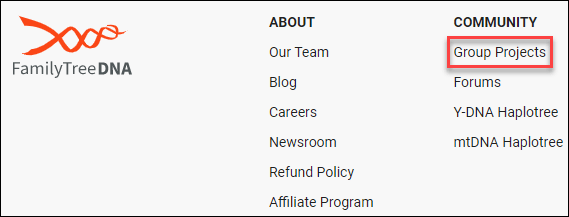

You can access the page, here.


I’m not sure that a potential customer will understand that they are supposed to enter a surname to find a project – or the benefits of doing so. I hope this can be changed to add instructions to enter a surname or topic, and add wording to more closely reflect the search function on the main page.
However, most people will still access the surname search in the center of the main Family Tree DNA page where it does say “search surname.”
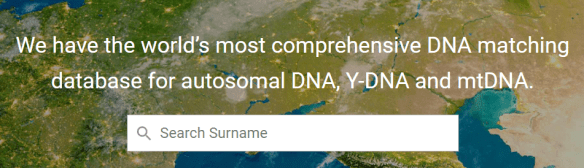

I would also like to see an “ancestor search” added so that people can see if someone with their ancestors has already tested. This would encourage testing.
Summary
In summary, I like these features of the new dashboard:
- I like the fact that the icons and features are all the same size in the space for that product – like advanced matching , the matrix and the learning center.
- I like that the dashboard can be rearranged.
- I like that the projects are showing clearly at left.
- I like the new myUpdates section.
- I like the Quick Links.
- I like the larger, more noticeable badges that tell testers whether their haplogroup is predicted or confirmed. It might be nice to have a popup explaining how testers can confirm a predicted haplogroup and the associated benefits.
- I like the fact that testers can see at a glance the level of their testing for each product, which also means they can quickly see if an upgrade is available.
- I like the fact that this version is much more friendly towards handheld devices such as iPads and phones.
Improvements I recommend are:
- Add the Account Settings back to the main page.
- Move the trees from the bottom to the top to encourage user participation.
- Add back the familiar blue upgrade button. People aren’t going to look in the shopping cart for a menu.
- Add a feature at the top that shows clearly for the 3 main products, Y DNA, mitochondrial DNA and Family Finder if one of those 3 has not been ordered and is available for the tester to order.
- Separate Big Y into Big Y, Big Y-500 and Big Y-700 buttons, providing Big Y and Big Y-500 testers with an upgrade avenue.
- Add a popup at the top to encourage people to build a tree or upload a Gedcom file.
- Add a popup at the top to encourage people to test other family members and to link testers in their tree so that they can enjoy phased matches assigned via matches to maternal and paternal family members.
- Add a popup at the top to coach people to complete the various functions that enhance the user experience including:
- Earliest Known Ancestor
- Surnames
- Matches Map information
- Sharing
- Joining projects
The new features are certainly welcome and a great start.
I hope these improvements are added quickly, because I fear that we lose opportunities every day when people don’t understand or don’t add information initially, then never sign in again.
We need to help testers and family members understand not only THAT they need to provide this information, or that they can upgrade their tests, but WHY that’s important and beneficial.
_______________________________________________________
Disclosure
I receive a small contribution when you click on some of the links to vendors in my articles. This does NOT increase the price you pay but helps me to keep the lights on and this informational blog free for everyone. Please click on the links in the articles or to the vendors below if you are purchasing products or DNA testing.
Thank you so much.
DNA Purchases and Free Transfers
- FamilyTreeDNA
- MyHeritage DNA only
- MyHeritage DNA plus Health
- MyHeritage FREE DNA file upload
- AncestryDNA
- 23andMe Ancestry
- 23andMe Ancestry Plus Health
- LivingDNA
Genealogy Services
Genealogy Research
- Legacy Tree Genealogists for genealogy research
