

Great news! FamilyTreeDNA has partnered with MyHeritage for tree integration. The purpose is to obsolete the FamilyTreeDNA tree and integrate it as a tree that resides on MyHeritage for FamilyTreeDNA customers.
MyHeritage’s tree-building software is much more robust and functional than the FamilyTreeDNA trees, which makes sense because MyHeritage is a “tree” company. No one maintains their primary tree at FamilyTreeDNA, and FamilyTreeDNA never intended their tree to be a “research tree.” The tree at FamilyTreeDNA has always served three primary purposes:
- So you can view your matches trees and vice versa.
- So that you can link your known relatives to enable Family Matching (bucketing), an awesome feature that deposits your matches in either maternal or paternal buckets based on triangulated segments.
- To provide resources for internal feature development, such as information for MyOrigins.
How Does This Integration Affect Me?
Let me explain what this new integration means in bulleted format. Then, we will review the specifics, and I’ll walk you through each step.
- You can/should/need to transfer your tree from FamilyTreeDNA to MyHeritage.
- You can no longer start a new tree on the FamilyTreeDNA platform. New trees will be started on the MyHeritage platform. This also means that if you delete your tree at FamilyTreeDNA, you cannot upload a new one to FamilyTreeDNA before transferring to MyHeritage.
- As of September 9, 2024, all trees at FamilyTreeDNA will become read-only, meaning that your matches can see your tree, and you can see theirs if they have not migrated to MyHeritage, but you can no longer modify or add to the tree at FamilyTreeDNA.
- After you transfer your tree, or link to a tree at MyHeritage, your matches at FamilyTreeDNA will simply see your tree on the MyHeritage platform when they click on your tree icon.
- Trees that have not migrated to MyHeritage are being left in place in read-only format so that the “legacy” trees of people who may have passed away or don’t transfer their trees will not be lost to their matches.
- If you don’t transfer your tree to MyHeritage by September 9th, you’ll still be able to transfer it later (for free) – you just won’t be able to modify it at FamilyTreeDNA as their tree-building function is being retired.
- After you have completed transferring your tree to MyHeritage, your tree is no longer available at FamilyTreeDNA. After the transfer, your tree is on the MyHeritage platform.
- ONLY your tree is transferred/uploaded to MyHeritage, NOT your DNA or DNA matches.
- Hopefully, you’ve already linked your Y-DNA, mitochondrial DNA, and autosomal matches to their place on your tree at FamilyTreeDNA. If so, those matches will be automatically relinked for you at MyHeritage.
- After you transfer your tree, you can link new matches at FamilyTreeDNA to your tree residing on the MyHeritage platform. Linking is actually MUCH easier now.
- If you ALREADY have a tree at MyHeritage, you can select to link your FamilyTreeDNA test kit to “yourself” on that tree. Momentarily, I will discuss why you might want to transfer your FTDNA tree anyway.
- If you DO NOT have a tree at MyHeritage already, you can transfer your tree for free, no matter how large, from FamilyTreeDNA. You will be able to add to that tree for free for 90 days. After that, if you want to add to a tree with more than 250 people in the tree, you will need a MyHeritage data/records subscription.
- You will immediately receive MyHeritage‘s tree benefits for the people in the tree that you transfer from FamilyTreeDNA.
- You can also start a tree at MyHeritage. New trees with 250 or fewer people do not require a subscription to MyHeritage.
- This tree integration between FamilyTreeDNA and MyHeritage does NOT in any way intermix your DNA results or matches at FamilyTreeDNA with DNA results or matches at MyHeritage.
- The ONLY “joining” is that FamilyTreeDNA now uses MyHeritage trees instead of their own tree. In other words, your FamilyTreeDNA tree is HOSTED by MyHeritage, or you can use an existing MyHeritage tree.
Beginning the Transfer Process
Now, when you sign on to your FamilyTreeDNA account, you’ll see the following popup.

You will also see this blue banner at the top of your signin page at FamilyTreeDNA.

Click on “Learn More” to continue.


MyHeritage offers a lot of features and conveniences for building and maintaining trees that FamilyTreeDNA did not, such as:
- A tree Consistency Checker
- Smart Matches to people in other trees with the same ancestors
- Record Matches from their 20 billion historical records that include newspapers and out-of-print books
- Various tree views, such as a fan chart and timeline
- Maps
- Wonderful photo tools to repair and enhance your family photos
- The ability to add marriage and other life events with dates
- The ability to have the same ancestor in your tree multiple times in various lines, including double cousins
- Non-case-sensitive searches
- Relationship of each person in the tree to the home individual

At the bottom of the information page, you can view frequently asked questions.

Transferring Your Tree is Easy.
After clicking “Get started now” from any of the places it appears, you’ll see information about connecting with MyHeritage during the tree transfer process.

This page grants FamilyTreeDNA permission to share this specific information with MyHeritage.
There are actually two steps.
- Connecting your FamilyTreeDNA account to MyHeritage, which occurs by signing on to or creating a new account at MyHeritage through your FamilyTreeDNA account.
- Transferring your tree from FamilyTreeDNA to MyHeritage.
MyHeritage User
If you are an existing MyHeritage user and already have an account, you’ll be prompted to sign in to MyHeritage at this point.

You will then be sent a verification code to be sure it’s actually you trying to sign in.

After completing this step, if you are already a MyHeritage user, you’ll see your tree choice options.
New MyHeritage User
If you are NOT yet a MyHeritage user, you’ll be prompted to set up a free account and then you’ll continue with the account link and tree transfer.
Tree Selection
After signing in, you’ll see a menu of trees that you can link your FamilyTreeDNA account to.
Please DO NOT make a selection yet. Read through the rest of these instructions first.

As soon as I signed into my MyHeritage account after linking my FamilyTreeDNA account to MyHeritage, I saw a list of possible trees that I can link my account to. The top tree is the tree that I’m in the process of transferring from FamilyTreeDNA.
Below that tree, if I have other trees at MyHeritage or I’ve been given access to other trees at MyHeritage, I can link to “me” in those trees instead of using a transferred tree from FamilyTreeDNA. I would suggest only linking to a tree that you own and control, not one you’ve been invited to view.
Linking Means Two Different Things
Not to be confusing, but we are talking about linking in two contexts:
- Linking your FamilyTreeDNA account to a tree at MyHeritage.
- Linking matches to their profile card in your tree at FamilyTreeDNA to enable Family Matching (bucketing). You’ll perform the same match-linking process in your new tree at MyHeritage.
To ensure linked matches at FamilyTreeDNA link correctly at MyHeritage, count and record the names of your linked matches at FamilyTreeDNA.

Click on the “Tree” tab at the top of your personal page at FamilyTreeDNA. At left, select “Link Matches” which displays matches that you’ve already linked and matches available to link. at least not without undoing and reversing everything.
It’s essential to do two things at this point because after you select and link to a tree at MyHeritage, you will no longer be able to view your old tree at FamilyTreeDNA, at least not without undoing and reversing the entire process.
- Count and make a list of your linked matches so that you know who is linked and can verify those people automatically relinked correctly after your tree moved to MyHeritage.
- Assure that the names of the people who are linked are SPELLED EXACTLY THE SAME in the tree you’re going to link to at MyHeritage, including any prefixes such as “Mr.”, shown above. This is one of the reasons I suggest transferring your tree from FamilyTreeDNA and using that tree at MyHeritage, even if you already have a tree at MyHeritage.
Linking Your FamilyTreeDNA Account to a Tree at MyHeritage
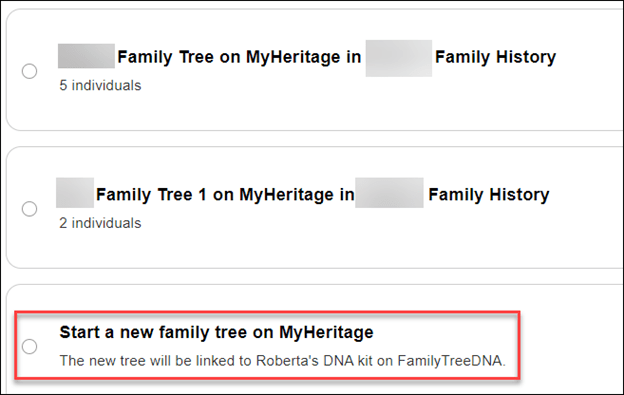
If your FamilyTreeDNA tree consists of more than 8 or 10 people, your tree will be listed at the top and you will be given the option to transfer. If you have a small tree, it will not transfer and the tree will not be shown as an option.
The tree shown at the top of the list is the tree that you will transfer from FamilyTreeDNA to MyHeritage.
Checking this box selects the tree to transfer to MyHeritage which begins after scrolling to the bottom and pressing “Continue.”

If your tree is very small, or you don’t have a tree and want to begin one at MyHeritage, scroll to the very bottom of the trees available on your MyHeritage account if you have access to more than one tree. You’ll see the option to start a new tree at MyHeritage.
Consent is Critical
In either of the two scenarios above, transferring a tree or starting a new tree, you’ll see a consent notification below the tree options.

I’m not sure you can see this clearly in this screen shot, so I’ll transcribe it below.
I consent for MyHeritage to share my updated family tree information With FamilyTreeDNA from time to time, and I understand and consent that, upon sharing, such information will be subject to the FamilyTreeDNA privacy policy and terms of service, independently of MyHeritage.
It’s critically important for you to CONSENT to this transfer of information back to FamilyTreeDNA. This allows FamilyTreeDNA to use your tree data to improve their products and services for you – the same way they’ve always utilized customer information. For example, where your ancestors are from is critically important to improving MyOrigins and other geographically related tools.
If you transfer a tree, the consent box is already checked, but if you start a new tree after arriving through the FamilyTreeDNA platform, the consent is there, but it’s unchecked – so you have to check it.

I very strongly encourage you to transfer an existing tree or start a new one if you don’t have one, because that’s the ONLY WAY your tree information can benefit your results at FamilyTreeDNA.
Now for the bad news – if you link your FamilyTreeDNA account to an existing tree at MyHeritage, there is no option to consent for MyHeritage to send your tree information back to FamilyTreeDNA.
I really hope this policy is revised. It isn’t fair that FamilyTreeDNA can’t receive information from the trees of its customers, nor is it fair to their customers. Hopefully, this is just an oversight and will be remedied shortly.
If You Link to an Existing Tree at MyHeritage

If you link to an already existing tree at MyHeritage, you do NOT see a option to consent for your information to be provided periodically to FamilyTreeDNA.
There’s literally nothing below the trees where the consent verbiage is found with other options.
In my case, I’m an active user at MyHeritage, always growing my tree, so I was going to link my FTDNA account to myself in my tree at MyHeritage.
That is, until I discovered that MyHeritage DOES NOT PROVIDE THE CONSENT OPTION.
So, instead, I’ve transferred my existing tree to MyHeritage. This option has no disadvantages.

You can transfer any size tree to MyHeritage from FamilyTreeDNA, no matter how large. After initiating a transfer, you will receive a message that MyHeritage will email you when the transfer is complete.
My tree was finished transferring by the time I got something to drink and came back to my desk.

If you’re already a MyHeritage customer, you can have any number of trees of any size and there’s no additional cost to add to or modify trees if you’re a subscriber.
If you’re not a subscriber, you can still transfer a tree of any size from FamilyTreeDNA, but after 90 days, you will need a MyHeritage subscription if you want to add to that tree if it has more than 250 people.
For FamilyTreeDNA purposes, I’ll use the tree that I transferred from FamilyTreeDNA and keep my FamilyTreeDNA test linked to “me” in that tree and my cousins linked to “them” in that tree.
The best aspect of transferring your current tree from FamilyTreeDNA is that your linked relatives all stay linked automatically!
Of course, I’ll continue to use my MyHeritage tree for genealogy research and for my MyHeritage DNA kits.
I love my MyHeritage subscription. Transferring my FamilyTreeDNA tree and using my MyHeritage tree for genealogy research gets me the best of both worlds.
Your FamilyTreeDNA Tree at MyHeritage
After my tree transferred to MyHeritage, I clicked on the “View Tree” link in the email to verify that the tree had transferred accurately.

Indeed, all 634 people were transferred – but the tree was assigned a strange name. I need to change that.

If you want to change the tree name on MyHeritage, and trust me, I do – just navigate to “Family Tree,” then “Manage family trees,” then select that tree, then click on “Edit tree settings at far right.

Modifying Tree Privacy, Functions and Sharing
You can change your mind about sharing with FamilyTreeDNA in either direction – meaning either enabling or disabling sharing – by clicking on “My Privacy” in the dropdown by your name at MyHeritage.

Then click on “Content.”
This is probably a good time to make sure you have enabled everything you want.

Next, you’ll see a list of every tree that you own on your MyHeritage site.

In this example, three trees are shown. The first tree is my regular MyHeritage Estes Family Tree. This is NOT a transferred FamilyTreeDNA tree, and no account from FamilyTreeDNA is linked to it.
There’s somewhat of a glitch going on here that I want to make you aware of.
As you can see, the option to “Allow sharing of my updated family tree information with FamilyTreeDNA” is available to check. In fact, I checked it. But it’s not valid and is misleading because it causes people to believe they can link to an existing tree at MyHeritage and share data back with FamilyTreeDNA, which is not the case.

If you click on the little “i” for information, you’ll see the above text that clearly says this setting “is only relevant for family trees that originated from FamilyTreeDNA and that you chose to transfer to MyHeritage to have the family tree linked to your FamilyTreeDNA account.”
Unfortunately, this option appearing here is causing people to simply link their FamilyTreeDNA account to their MyHeritage tree, believing that they will be sharing back with FamilyTreeDNA.
I really encourage MyHeritage to allow this data exchange because I think it would encourage people to maintain one tree at MyHeritage. This approach would benefit everyone and is not confusing.
On the second tree, which is also NOT a transferred tree, there is no option for sharing. This is not consistent with the first tree and causes confusion.
The third tree is my transferred tree. It does have the sharing option selected. This is a valid selection for this tree.
This is also a good time to review the features for each tree and make sure you have enabled or disabled the ones you want.
Back at FamilyTreeDNA
You can verify that you transferred your tree by checking your FamilyTreeDNA account. If you click on your tree, you’ll see a notification that you moved your tree.

Ok, now that the tree is moved, how do I know who’s linked?
How Do I Know Who’s Linked?
I can’t tell by looking at my FamilyTreeDNA tree on MyHeritage who is linked and who isn’t.
However, it’s easier than EVER at FamilyTreeDNA.
Just open your match list.

Prior to transferring my tree to MyHeritage, I had linked 15 people to their profile card on my tree at FamilyTreeDNA. Those 15 people triangulated with enough other matches to allow FamilyTreeDNA to bucket a total of 3601 paternal matches and 1602 maternal matches.
Before I transferred my tree, I made a list of all the people who were linked.
Now, you can see under each match whether they are linked on your tree at MyHeritage and, if so, the relationship you’ve chosen for them.
My parents are both linked.
However, my Ancestry V4 test that I’ve uploaded as my twin for illustration purposes for my blog is not linked, so let’s link it.

Just click on “Link on Family Tree” where you’ll be prompted to sign in to MyHeritage. I have a secure password keeper, so for me, signing in happens immediately when I click on the link.

Look what happened next, automatically.
My matches name at FamilyTreeDNA populated the search bar, and since my tree at MyHeritage is the same tree I transferred from FamilyTreeDNA, the names automatically match. Easy peasy.
If you’re using a different tree, meaning one you did NOT transfer from FamilyTreeDNA to MyHeritage, you’ll need to enter either the accurate spelling of the person’s name you want to link to or a name generic enough that MyHeritage can find a group to offer you.

For example, Estes returned 23 results and I can browse through them to select the tester at FamilyTreeDNA. Alternatively, I can add the tester’s name to the MyHeritage tree I’m using as my FamilyTreeDNA tree.
Troubleshooting Section
If You Stop After Linking Your Account but Before Selecting the Tree
I got distracted by something during this process – after I had linked my FamilyTreeDNA account and signed into MyHeritage, but BEFORE I had linked my tree.
I received this email.

Don’t be confused by this email.
- If you don’t link to a tree at MyHeritage, you will still receive matches at FamilyTreeDNA.
- Nothing you do or don’t do in terms of transferring or linking to a tree at MyHeritage affects your ability to receive DNA matches at FamilyTreeDNA.
- If you don’t transfer your tree or link to one at MyHeritage, you won’t be able to link new matches at FamilyTreeDNA to their profile in your tree, and you won’t receive new bucketed Family Matches.
Clicking on “Link Family Tree” in the email returns me to where I left off at MyHeritage. I then linked my FamilyTreeDNA account to the tree that I transferred from FamilyTreeDNA.
Account Settings
After signing on to FamilyTreeDNA, you may close the popup to transfer your tree and then not be able to figure out how to transfer your tree.

Another place where you can initiate transferring your tree is through Account Settings on your FamilyTreeDNA page, which is found under the gear by your name in the upper right-hand corner of your personal page.

More importantly, though, if you somehow make a mistake or get confused, this is where you go in your FamilyTreeDNA account to:
- Link to a home person in your tree
- Unlink your account from MyHeritage and start over
- Once your tree is transferred, you cannot automatically “untransfer” your tree, although you can sever the link via a disconnect, delete that tree at MyHeritage or update your privacy settings
- Disconnecting from MyHeritage restores your tree at FamilyTreeDNA
I clicked on “Link to Home Person.”

The four closest people are shown in the tree I had selected. If none of these are the person you seek as your home person in a tree, type the name of the person you want to link in the search box. If you’re linking a relative’s kit that you maintain for them, you’ll probably need to type their name if you’re linking them to an existing tree.
Or, if you selected the wrong tree, you can disconnect from your MyHeritage account altogether, start over, and select a different tree.
Unfortunately, you’re not going to recognize that name of the tree (unless you changed it), so you’ll have to click to view the tree if you don’t remember which one you selected.

By clicking on the results you wish, you can either view the tree or select that person to link to as the primary person in your tree.

Summary & More Resources
I know this has been a lot for one article. I’ve been testing for several days and have tried to help you better understand so that you don’t say later, “I sure wish I had known that…”
I’m incredibly grateful that FamilyTreeDNA and MyHeritage have made this process seamless, even maintaining our linked relationships with our matches.
To summarize what you need to do:
- Link your FamilyTreeDNA account to MyHeritage
- Transfer your FamilyTreeDNA tree to MyHeritage
- Link to the tree you want to use at MyHeritage and select the home person
- Verify that your linked matches are still linked
I recommend using your FamilyTreeDNA tree at MyHeritage for FamilyTreeDNA purposes because:
- The names are all spelled correctly, and your linked matches won’t be broken
- Consent for MyHeritage to allow FamilyTreeDNA to periodically receive updated information from your transferred FamilyTreeDNA tree
Additional Resources
- FamilyTreeDNA wrote an article about the new features, here.
- FamilyTreeDNA provides a FAQ here, including information for Group Projects and Group Administrators.
- MyHeritage wrote an article, here.
Now, transfer your tree and go enjoy the new tree features at MyHeritage!
_________________________________________________________
Share the Love!
You’re always welcome to forward articles or links to friends and share on social media.
If you haven’t already subscribed (it’s free,) you can receive an e-mail whenever I publish by clicking the “follow” button on the main blog page, here.
You Can Help Keep This Blog Free
I receive a small contribution when you click on some of the links to vendors in my articles. This does NOT increase your price but helps me keep the lights on and this informational blog free for everyone. Please click on the links in the articles or to the vendors below if you are purchasing products or DNA testing.
Thank you so much.
DNA Purchases and Free Uploads
- FamilyTreeDNA – Y, mitochondrial and autosomal DNA testing
- MyHeritage DNA – Autosomal DNA test
- MyHeritage FREE DNA file upload – Upload your DNA file from other vendors free
- AncestryDNA – Autosomal DNA test
- AncestryDNA Plus Traits
- 23andMe Ancestry – Autosomal DNA only, no Health
- 23andMe Ancestry Plus Health
Genealogy Products and Services
- MyHeritage Subscription with Free Trial
- Legacy Family Tree Webinars – Genealogy and DNA classes, subscription-based, some free
- Legacy Family Tree Software – Genealogy software for your computer
- OldNews – Old Newspapers with links to save to MyHeritage trees
- Newspapers.com – Search newspapers for your ancestors
- NewspaperArchive – Search different newspapers for your ancestors
My Books
- DNA for Native American Genealogy – by Roberta Estes, for those ordering the e-book from anyplace, or paperback within the United States
- DNA for Native American Genealogy – for those ordering the paperback outside the US
- The Complete Guide to FamilyTreeDNA – Y-DNA, Mitochondrial, Autosomal and X-DNA
Genealogy Books
- Genealogical.com – Lots of wonderful genealogy research books
- American Ancestors – Wonderful selection of genealogy books
Genealogy Research
- Legacy Tree Genealogists – Professional genealogy research
